
Setti Contact guide
This guide has three parts, one for each kind of user:
- Part 1: Coordinators: people who add attendants and schedule sessions for one or more hosts, and create accounts for new hosts (1.6).
- Part 2: Hosts: the people who run the sessions: account managers, consultants, trainers, therapists. Hosts can also do everything a coordinator does.
- Part 3: Attendants: clients, guests and participants. They never need an account.
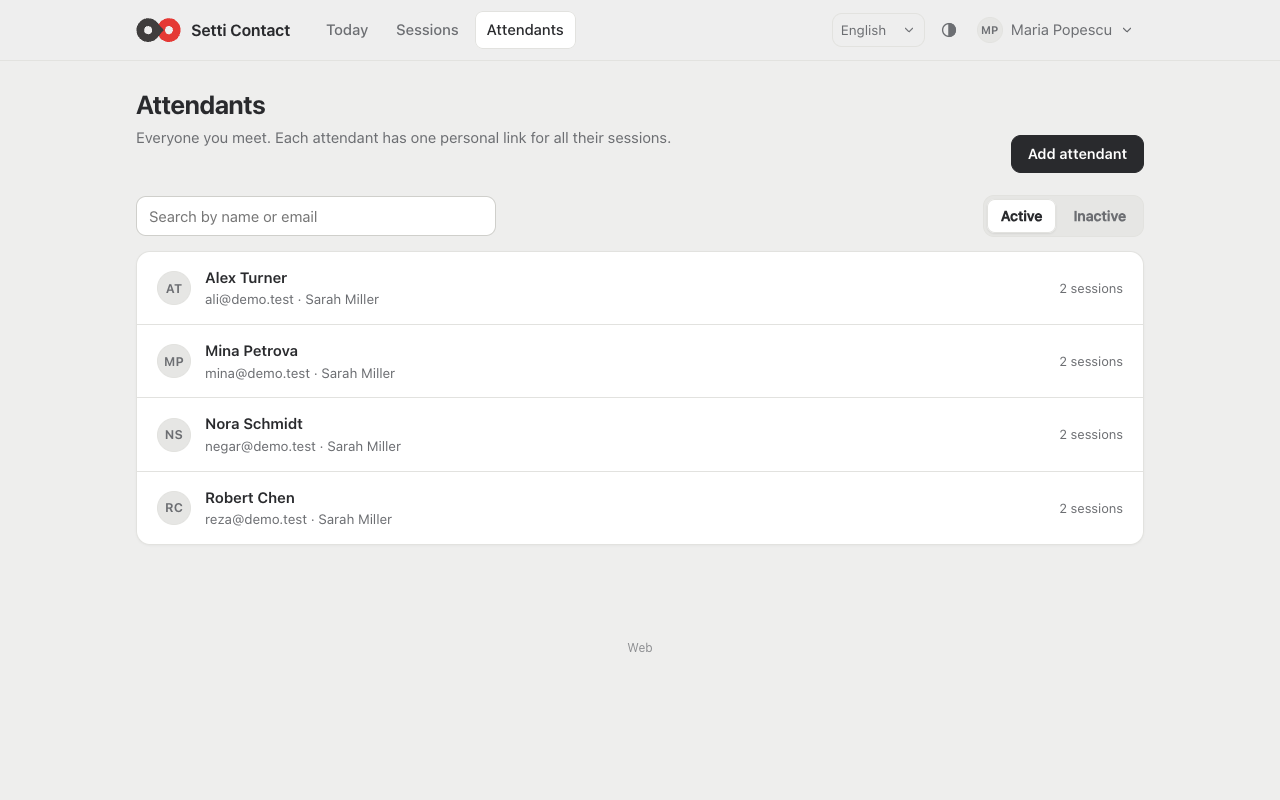
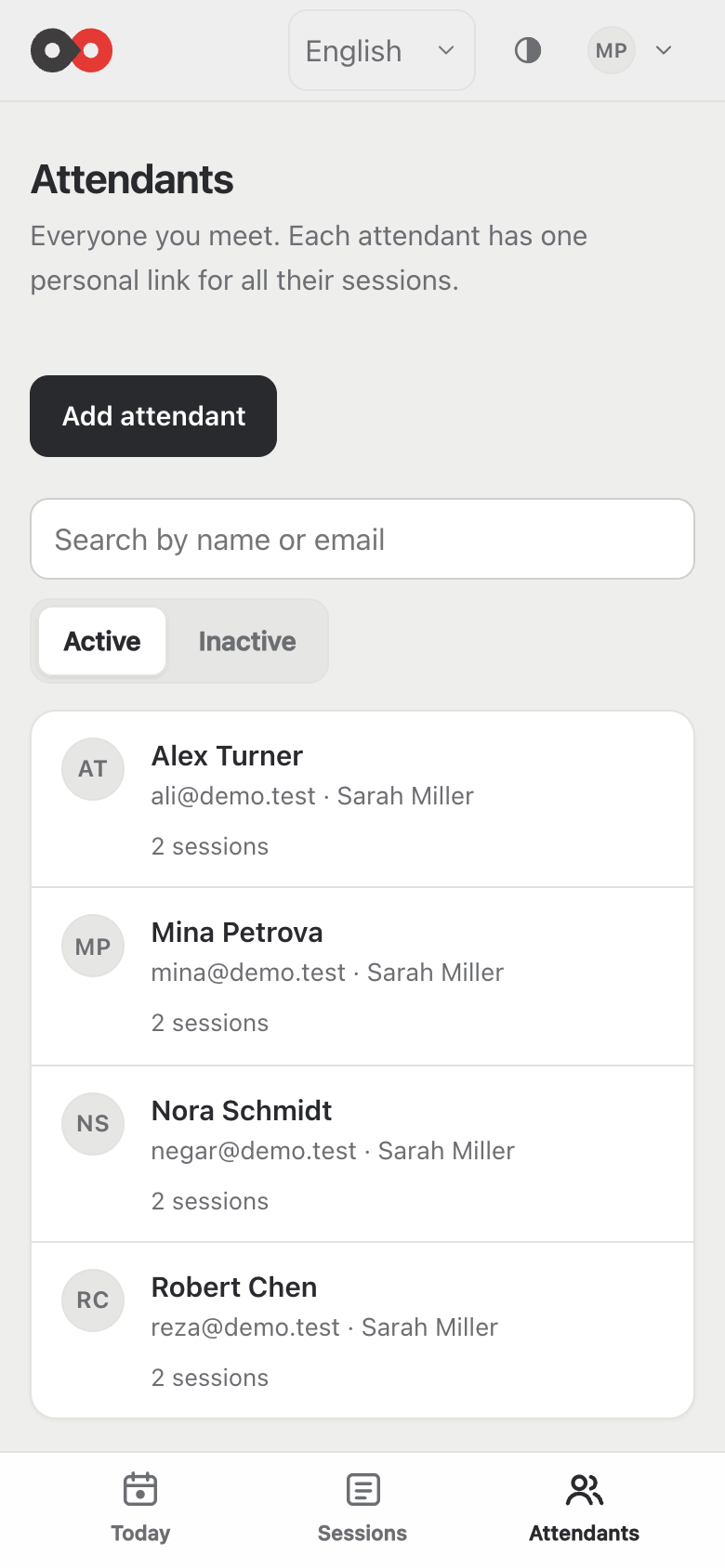
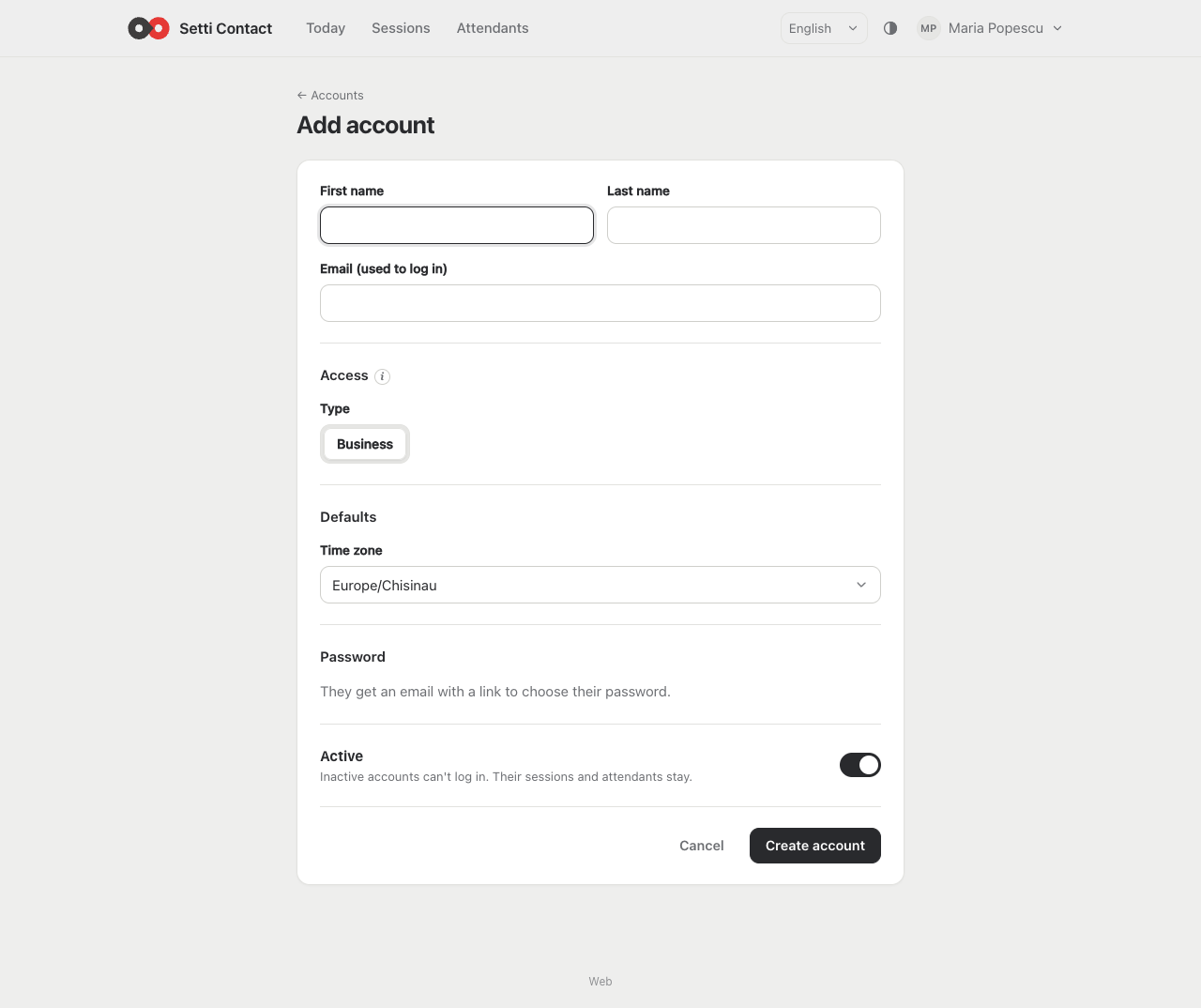
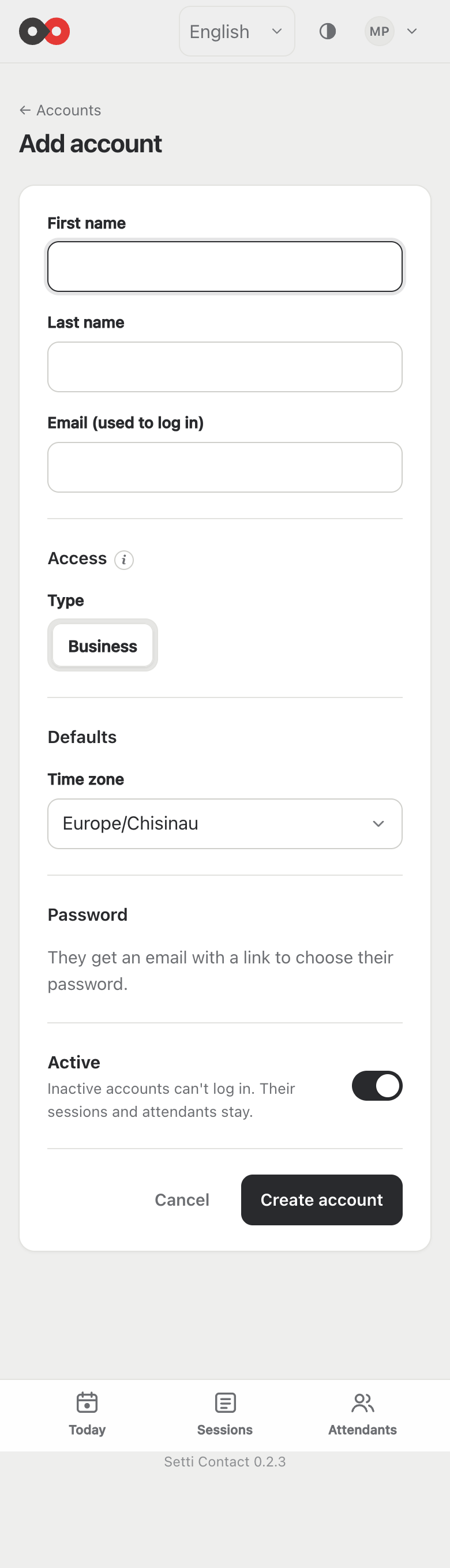
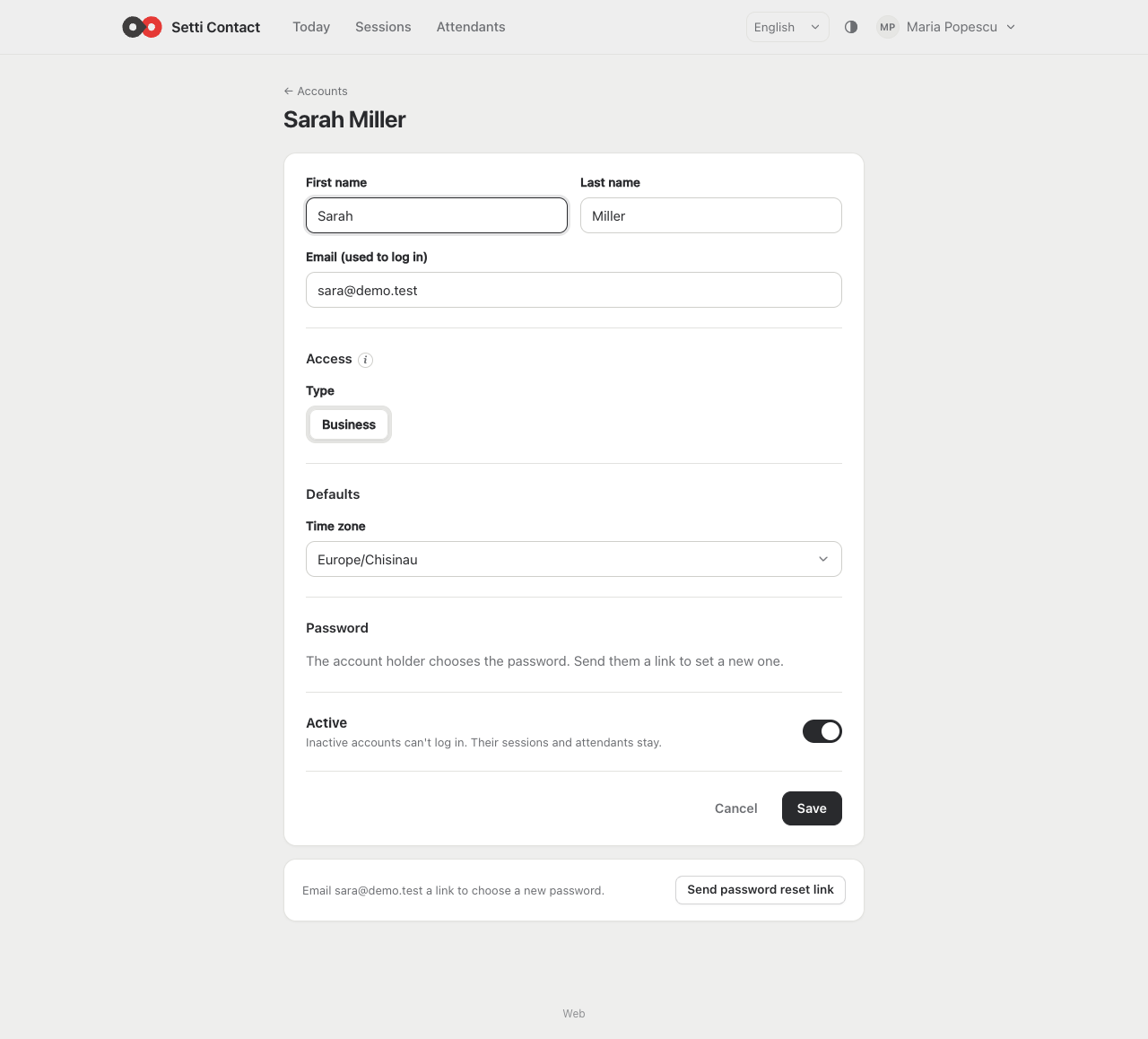
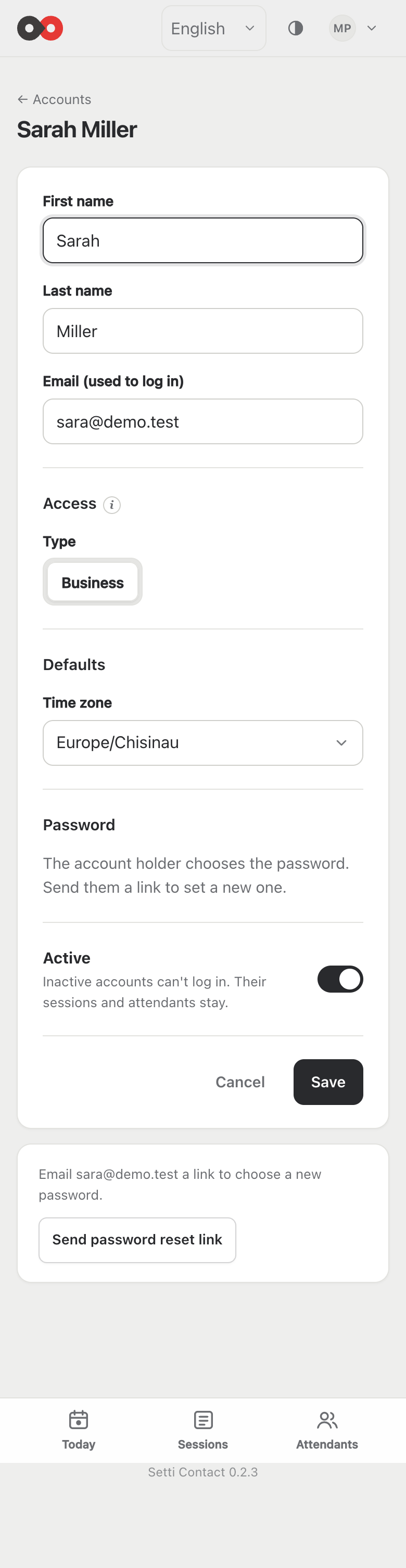
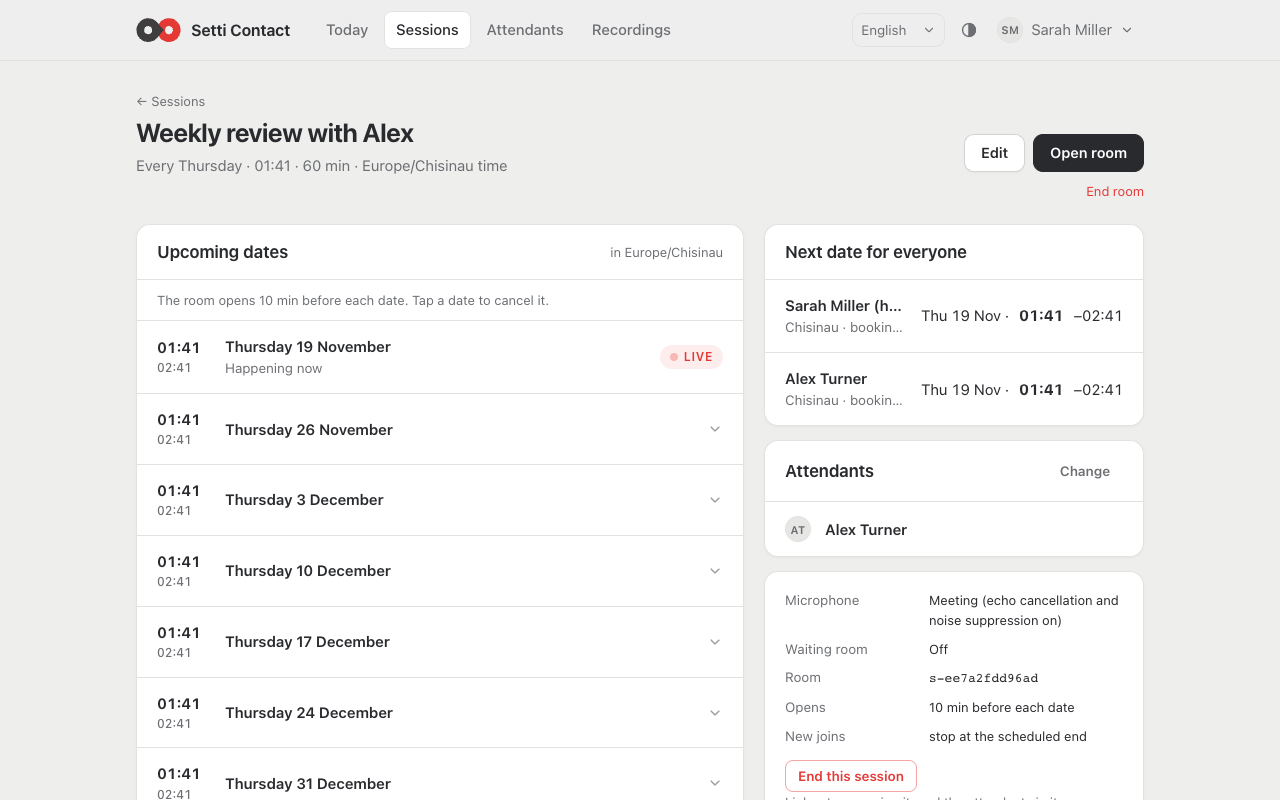
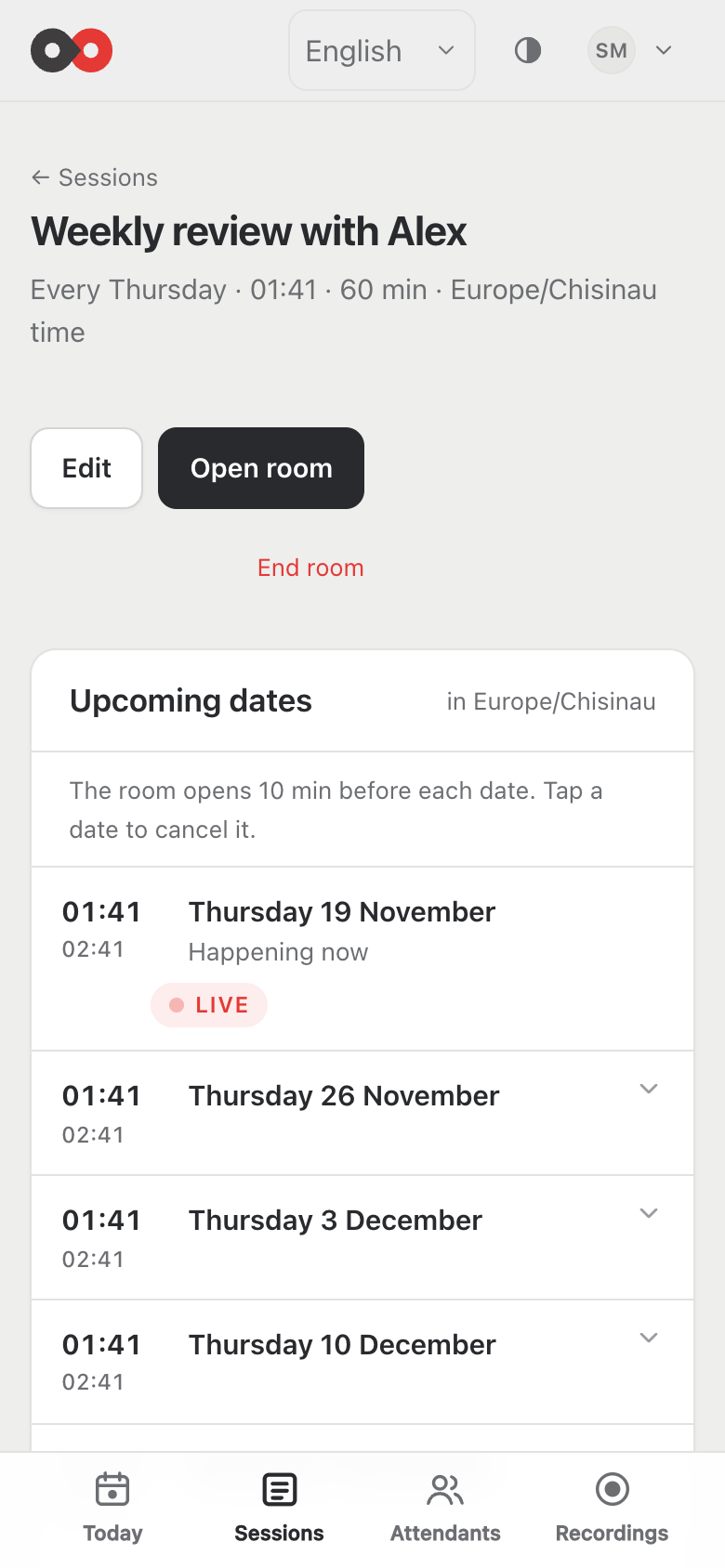
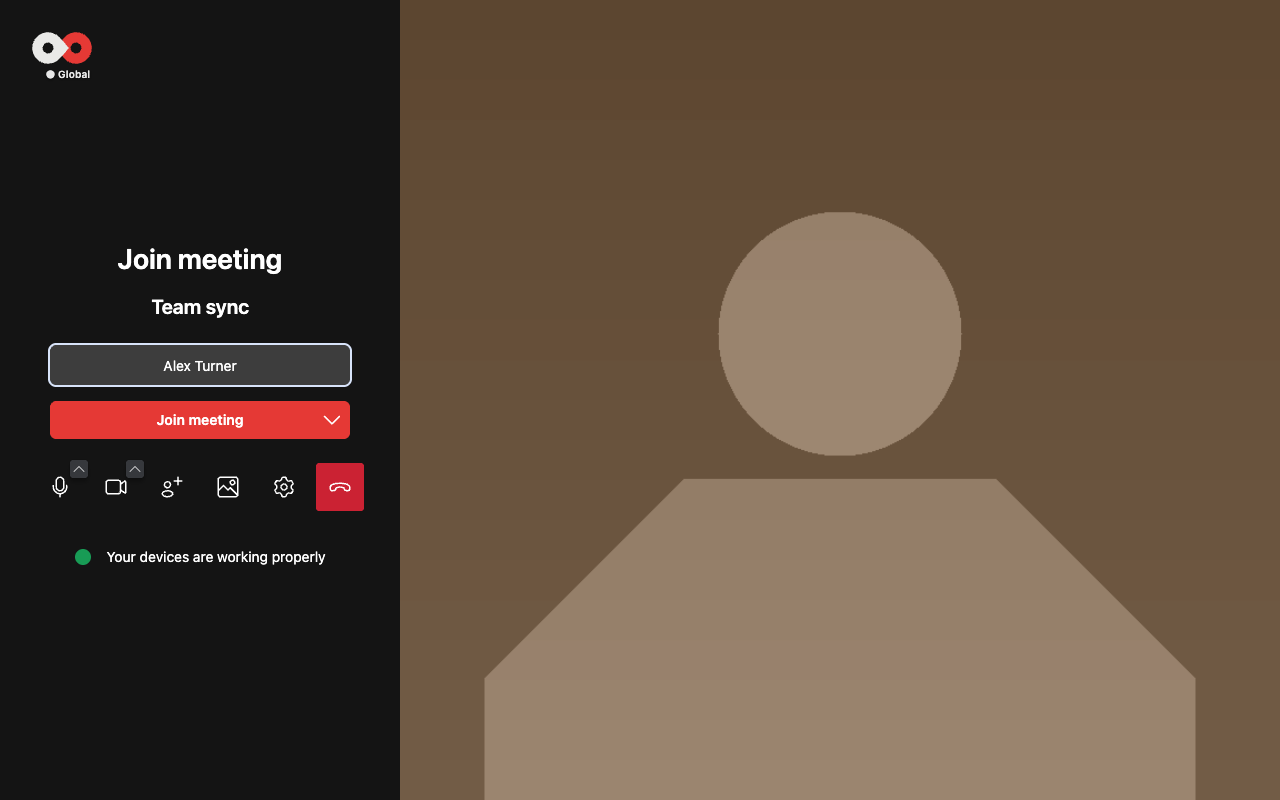
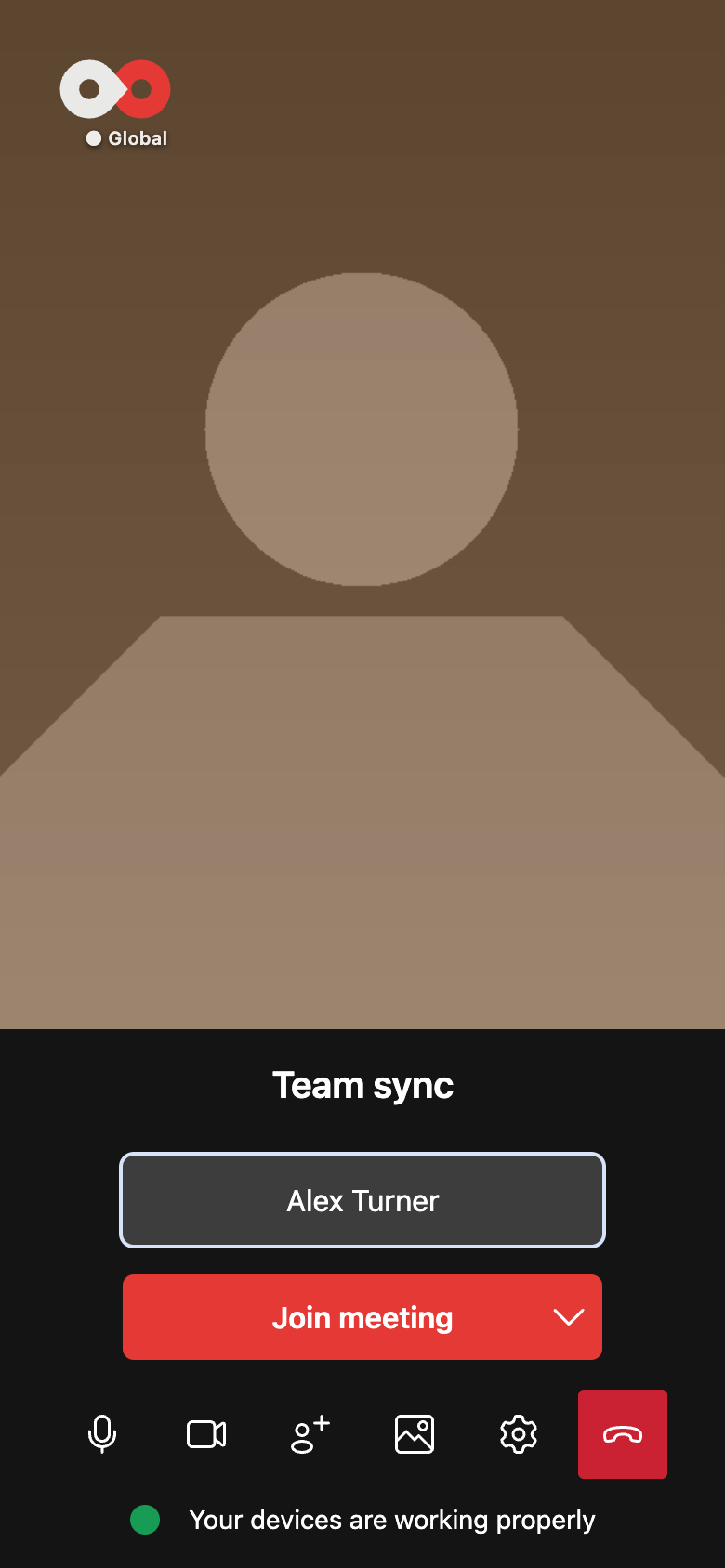
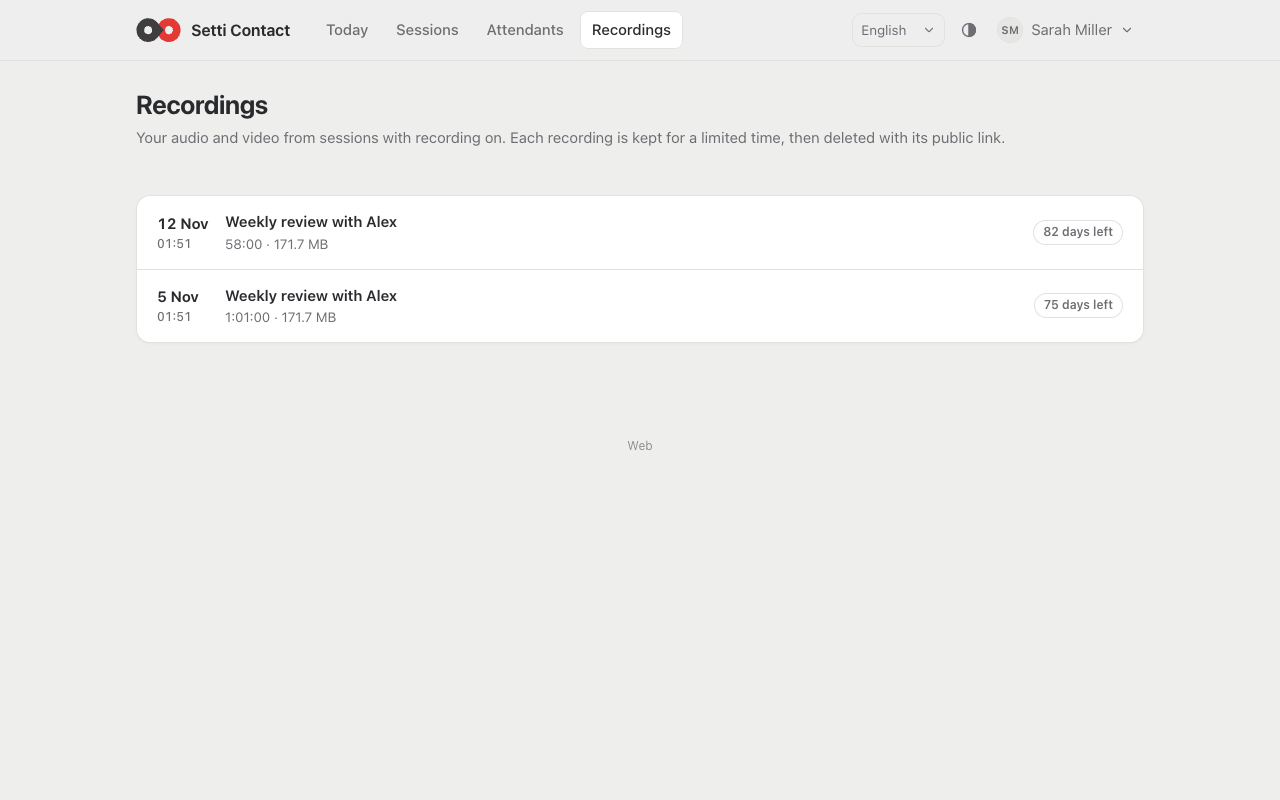
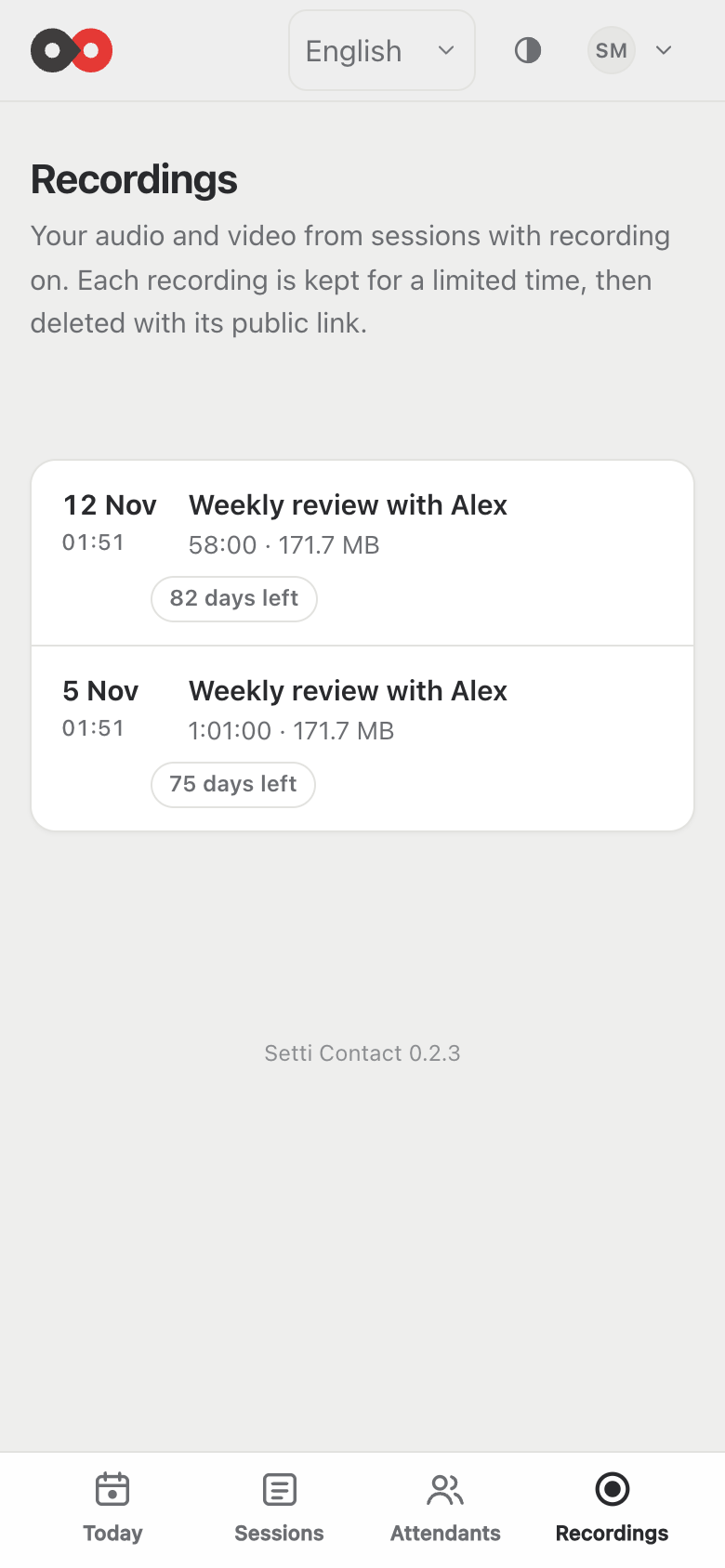
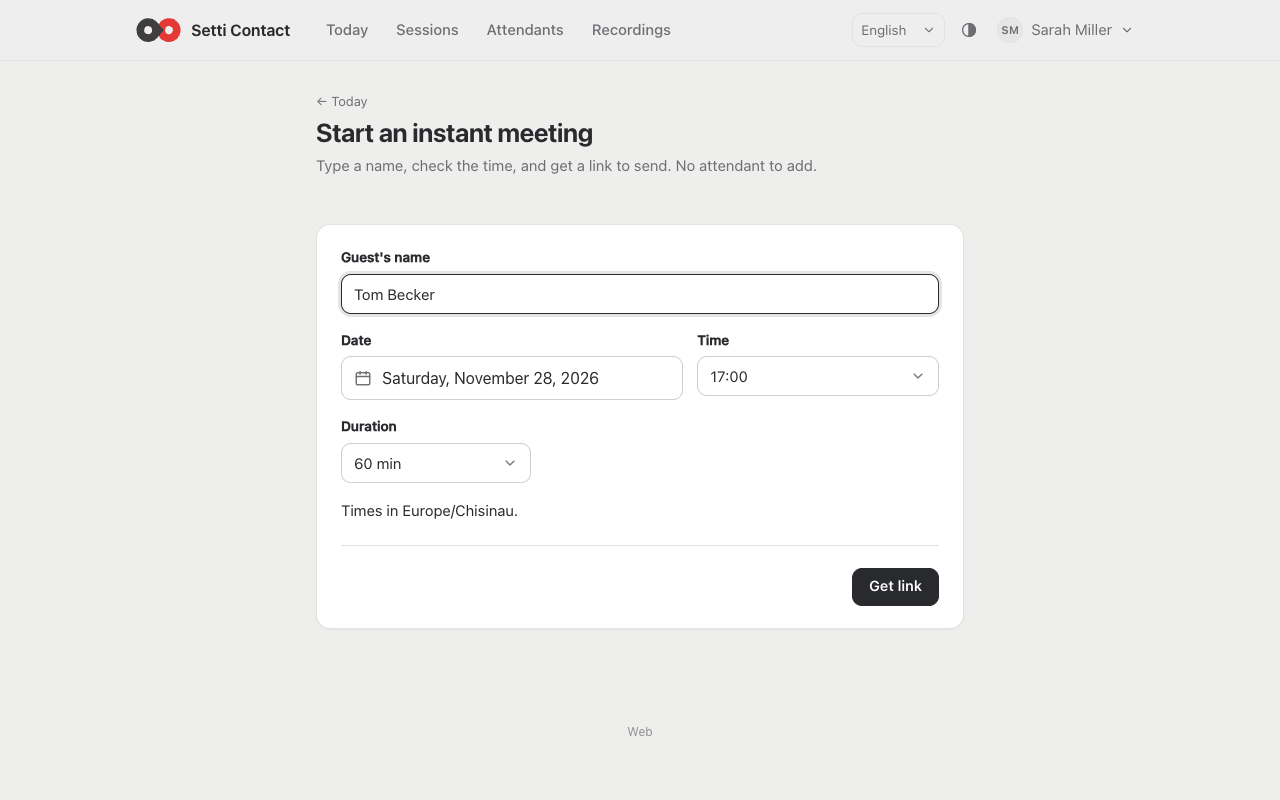
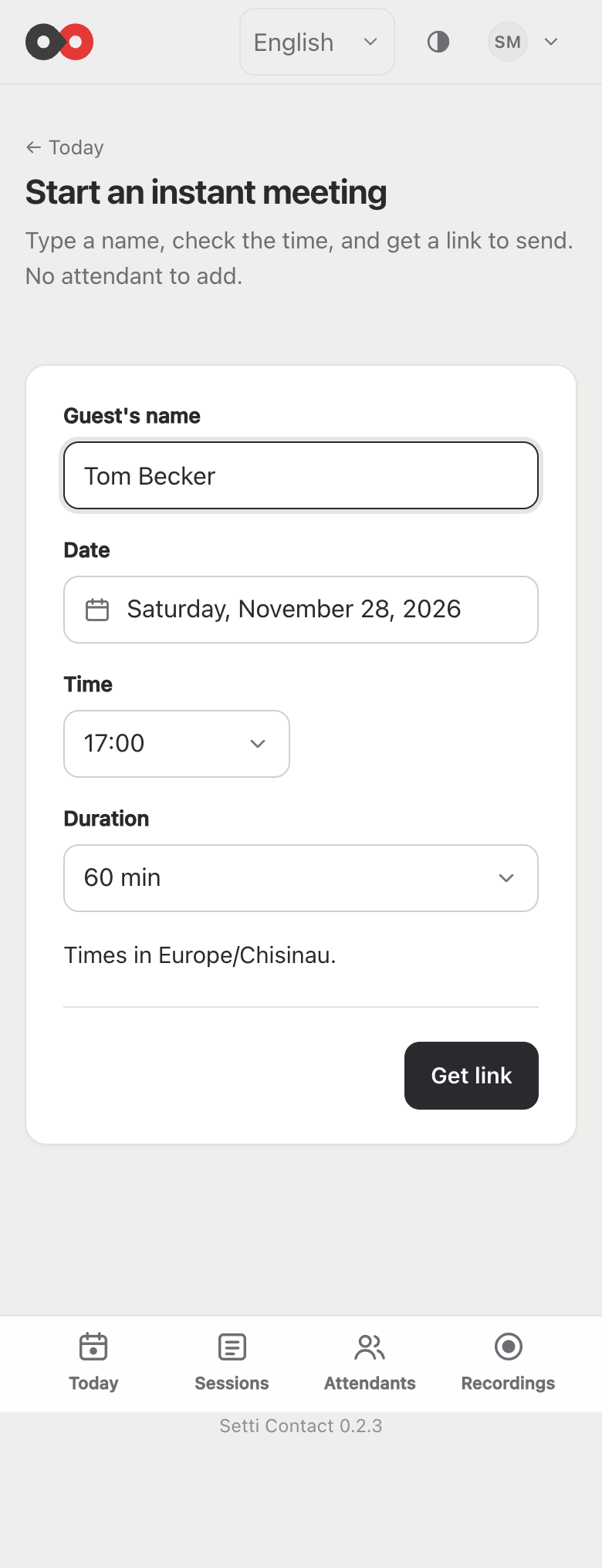
In each pair of pictures, the left one is the web view (a computer browser) and the right one the app view (the Android app or a phone browser). The pages are the same; only the layout follows the screen size.
Sign in at meet.setti.contact/app.
flowchart TB
  A["Administrator"] -->|"creates accounts"| H["Host"]
  A -->|"creates accounts"| C["Coordinator"]
  C -->|"creates accounts"| H
  C -->|"for their hosts"| P["Attendants and sessions"]
  H -->|"for themselves"| P
  P -->|"email with a personal link"| S["Attendant"]
  S -->|"personal link, no account"| R["Meeting room"]
  H -->|"Join button"| R
Language, dates and appearance
- Pages follow your device's language (English, Arabic, Russian or French). Change it in My settings → Language, or from the language list at the top of any page. Attendants choose theirs from the list at the top of their link page.
- Arabic pages read right to left.
- The round button at the top switches between the light and dark theme.
Part 1: Coordinators
A coordinator adds attendants and schedules sessions for one or more hosts, and can create accounts for new hosts. Coordinators don't see a host's recordings or private notes, and never set or see a host's password.
1.1 Signing in
Open the sign-in address, enter your email and password and press Log in. If you forgot your password, press Forgot your password? below the button and enter your email: you get a link to choose a new one (it works once, for 3 days). Your administrator or coordinator can also send you a password reset link.
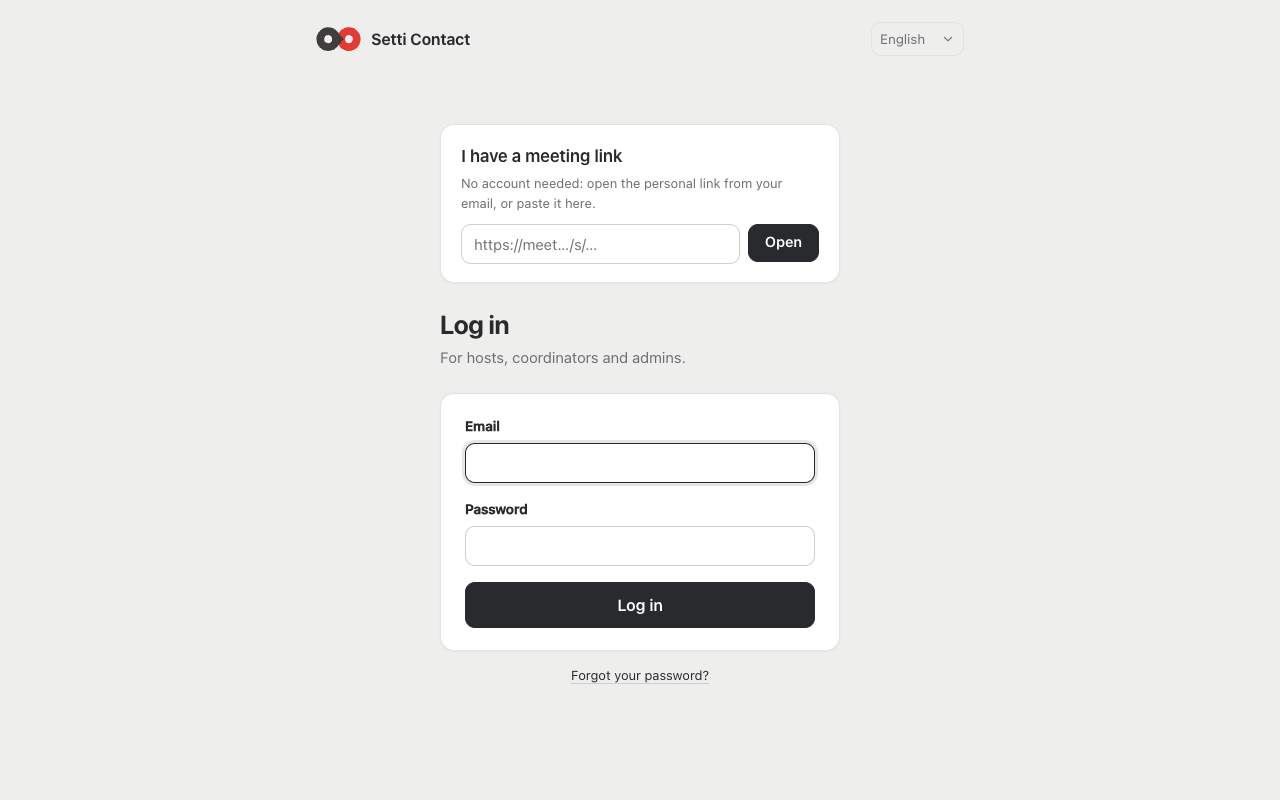
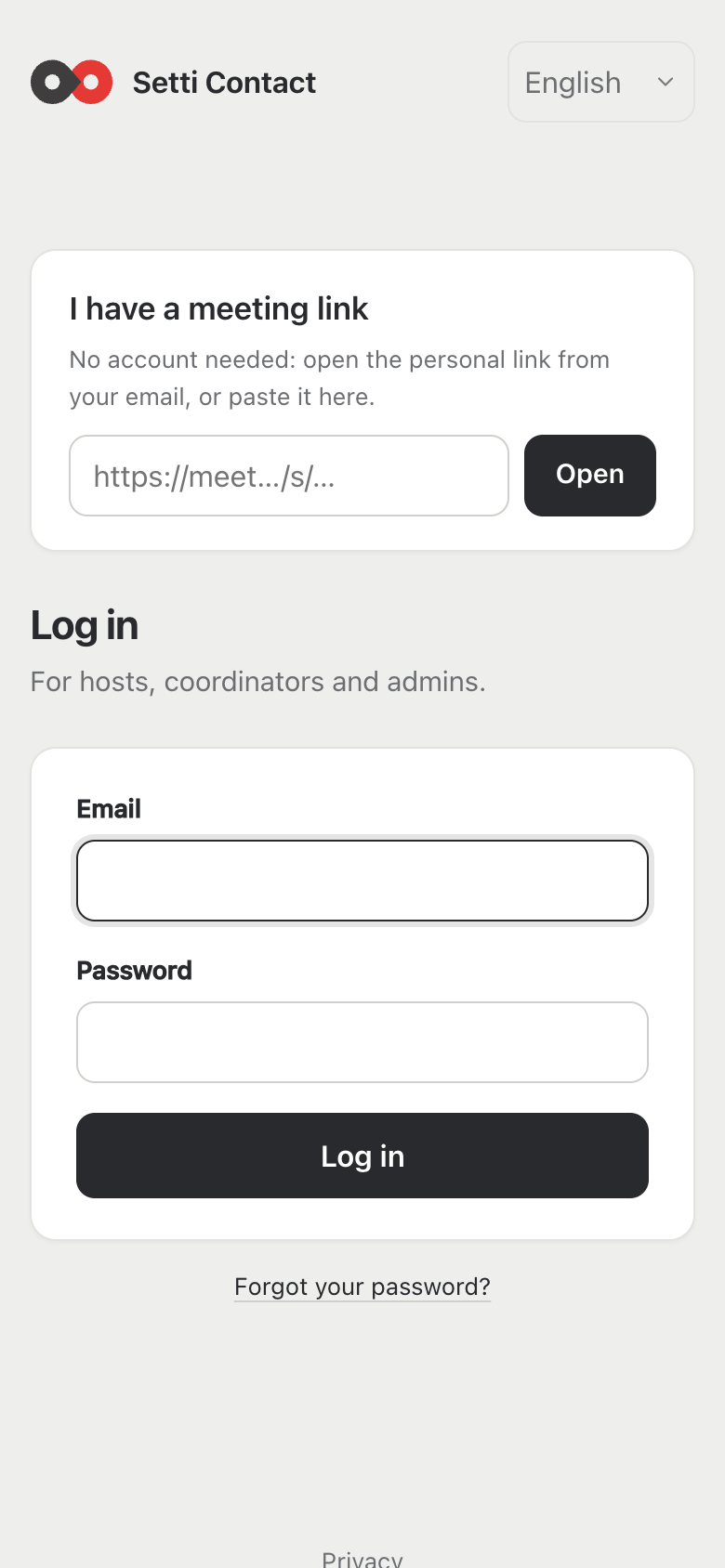
The I have a meeting link part of the sign-in page is for attendants: anyone with a personal link can paste it there; no account is needed.
1.2 Today
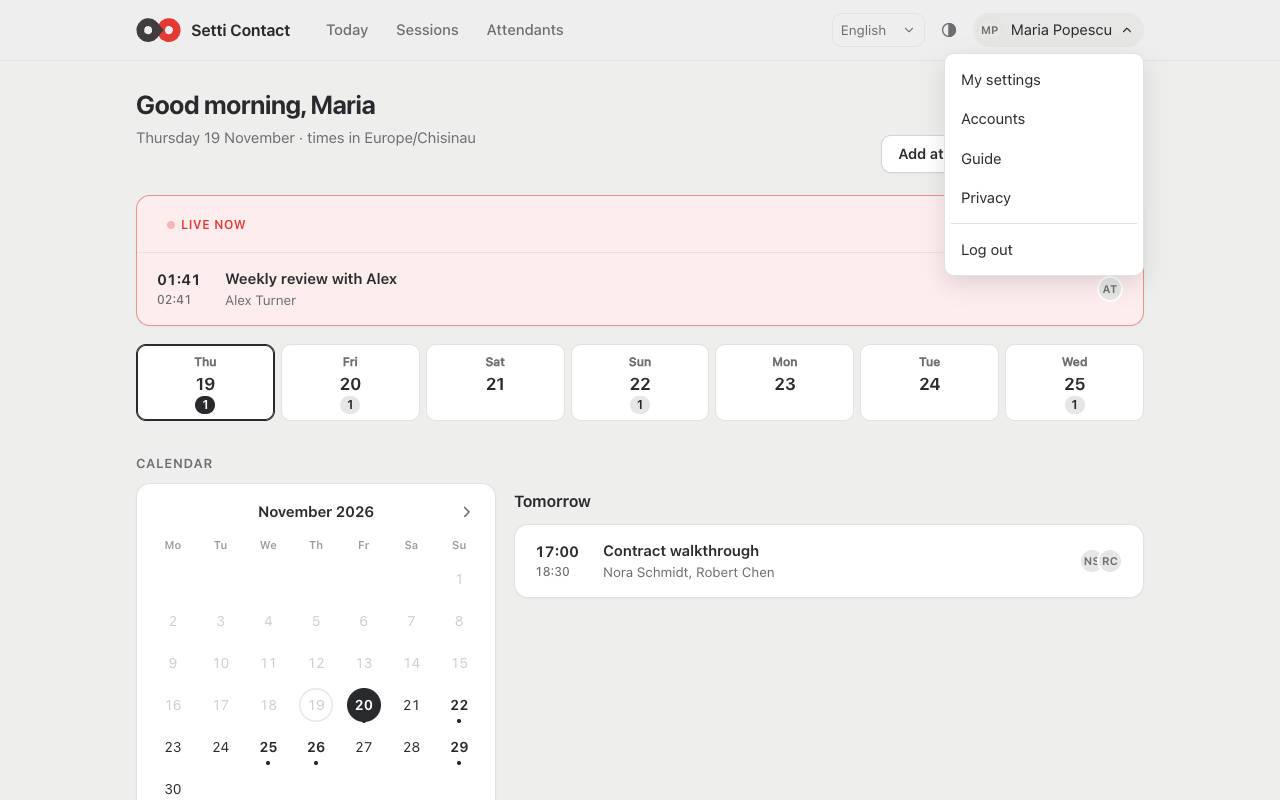
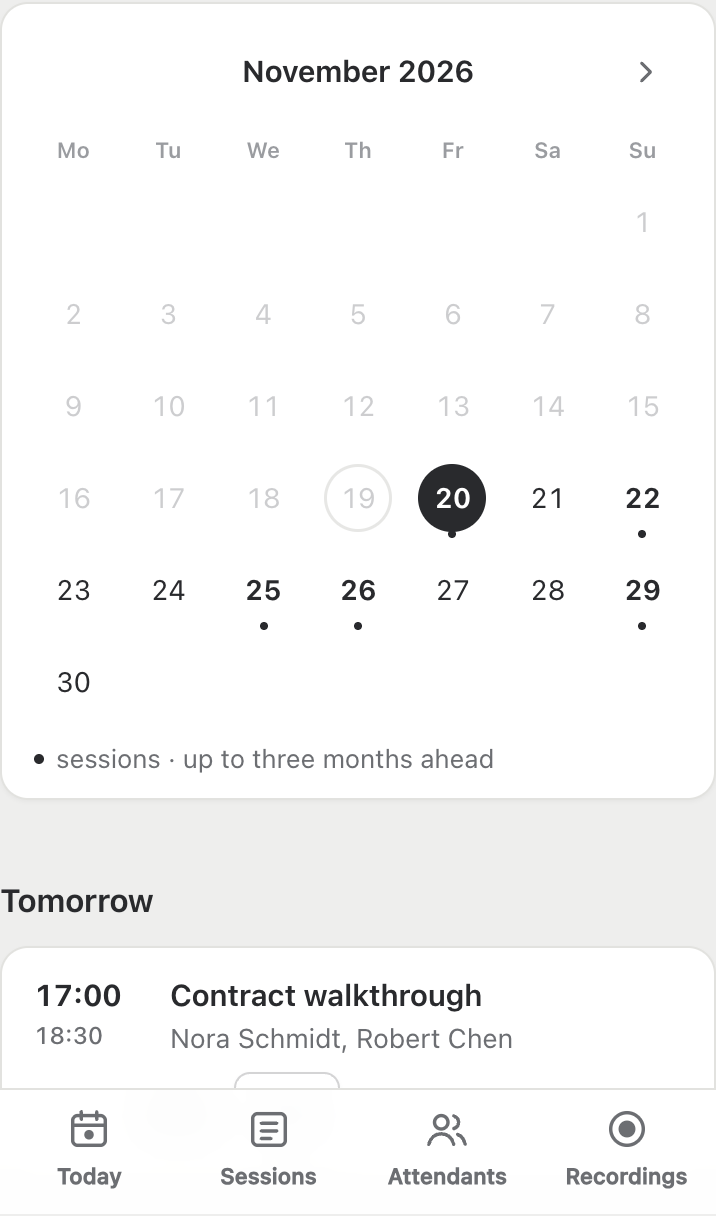
After signing in, Today opens: sessions that are live now, today's and tomorrow's sessions, the week ahead and a calendar for the next three months.
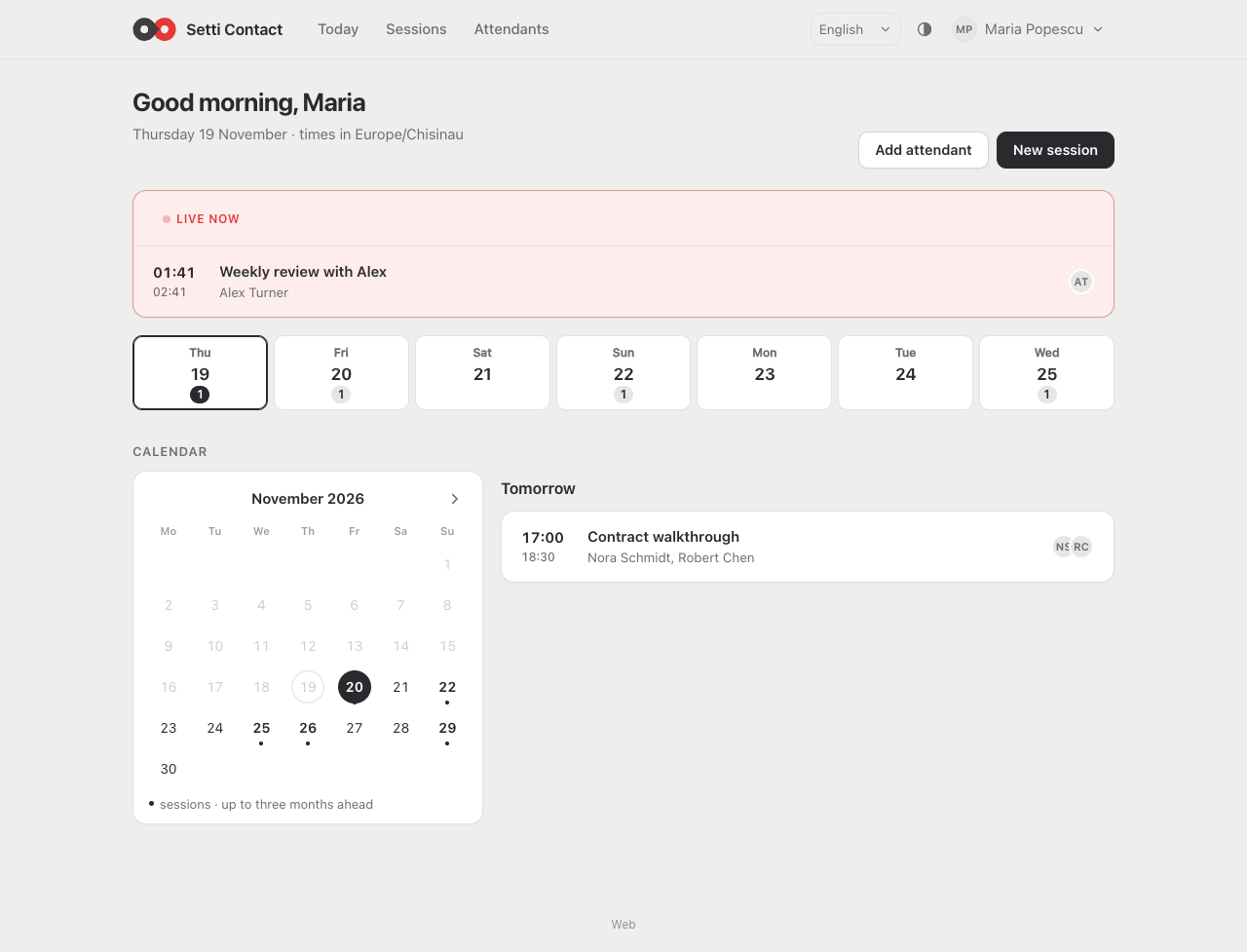
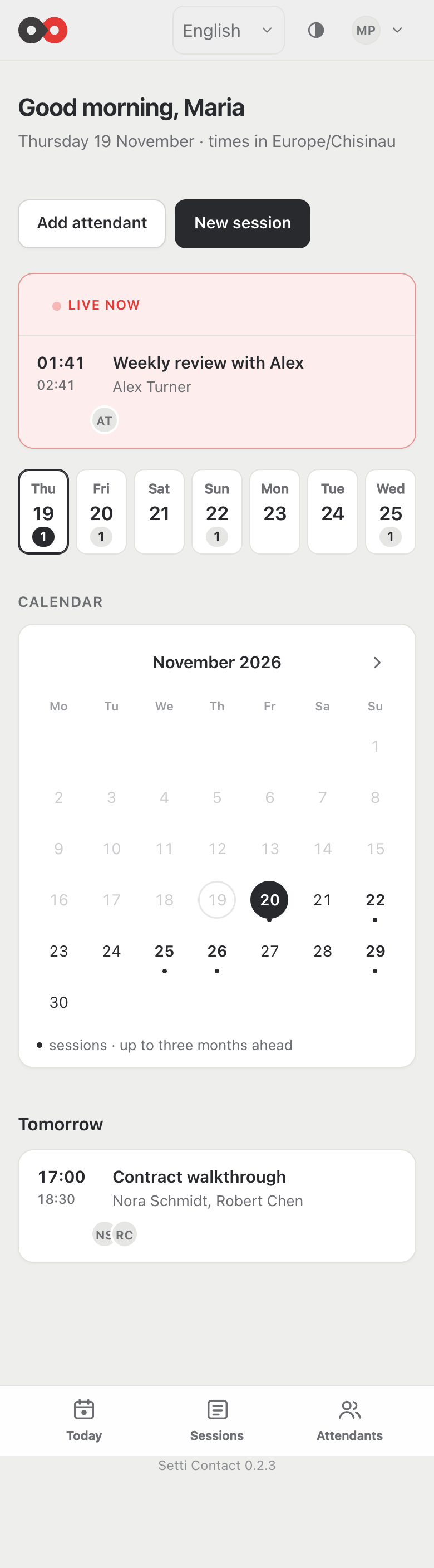
The menu under your name (top right) has My settings, Accounts, Guide (this page), Privacy and Log out.
1.3 Attendants
flowchart TB
  A["Attendants → Add attendant"] --> B["Name, email, host, time zone, language"]
  B --> C["Save"]
  C --> D["A personal link is made"]
  D --> E["Link emailed to the attendant"]
  D --> F["Added to a session"]
  F --> G["Booking email with a calendar file"]
The list of attendants
Press Attendants in the top menu. Search by name or email; Mine / All and Active / Inactive narrow the list.
Adding an attendant
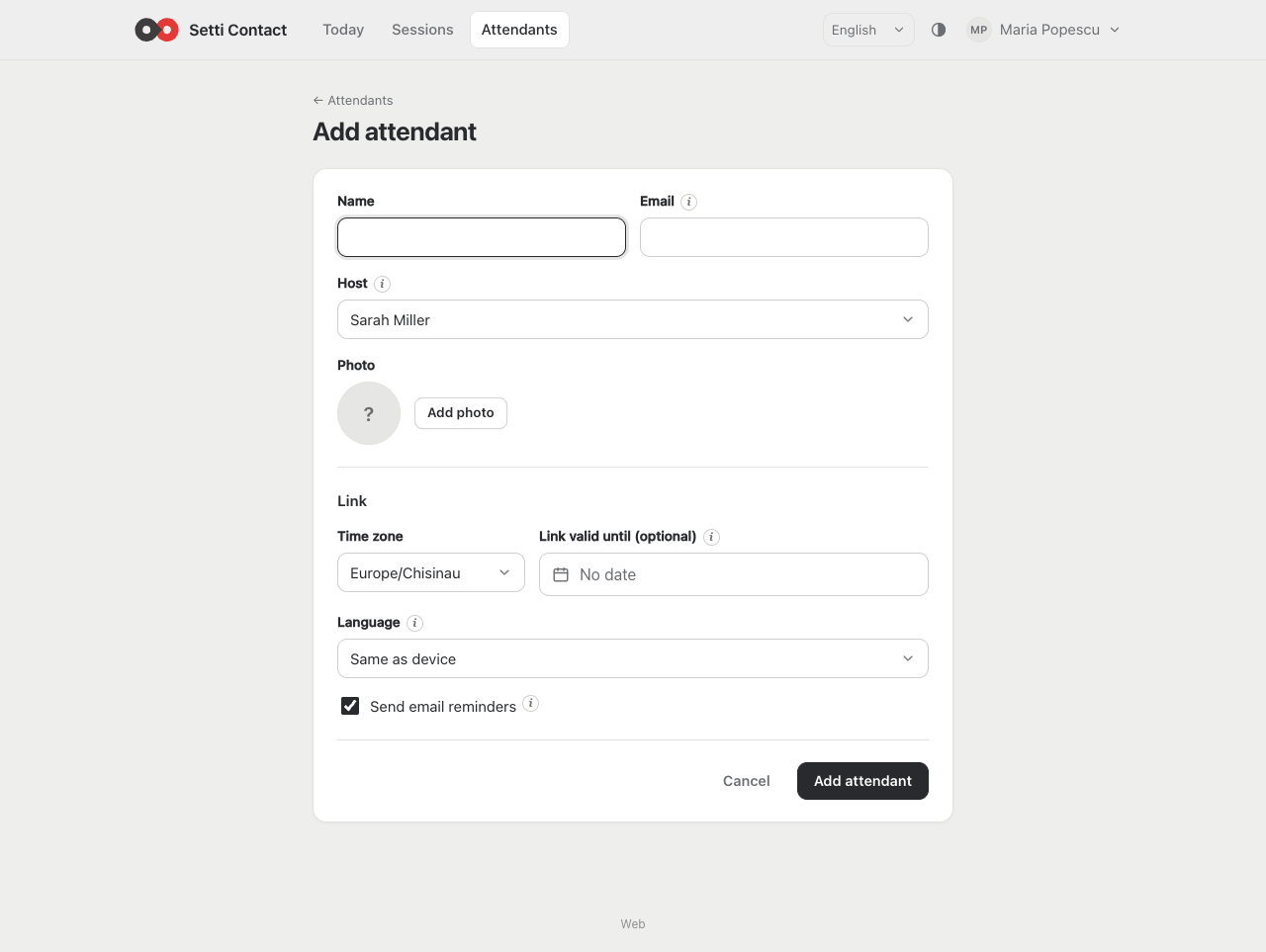
Press Add attendant and fill in:
- Name and Email: the email receives the link and the reminders.
- Host: whose list the attendant belongs to.
- Photo (optional).
- Time zone and Language: times and emails are in the attendant's own time and language. "Same as device" means the language of their phone or browser.
- Link valid until (optional): the link stops working after this date.
- Send email reminders: a reminder goes out before each session.
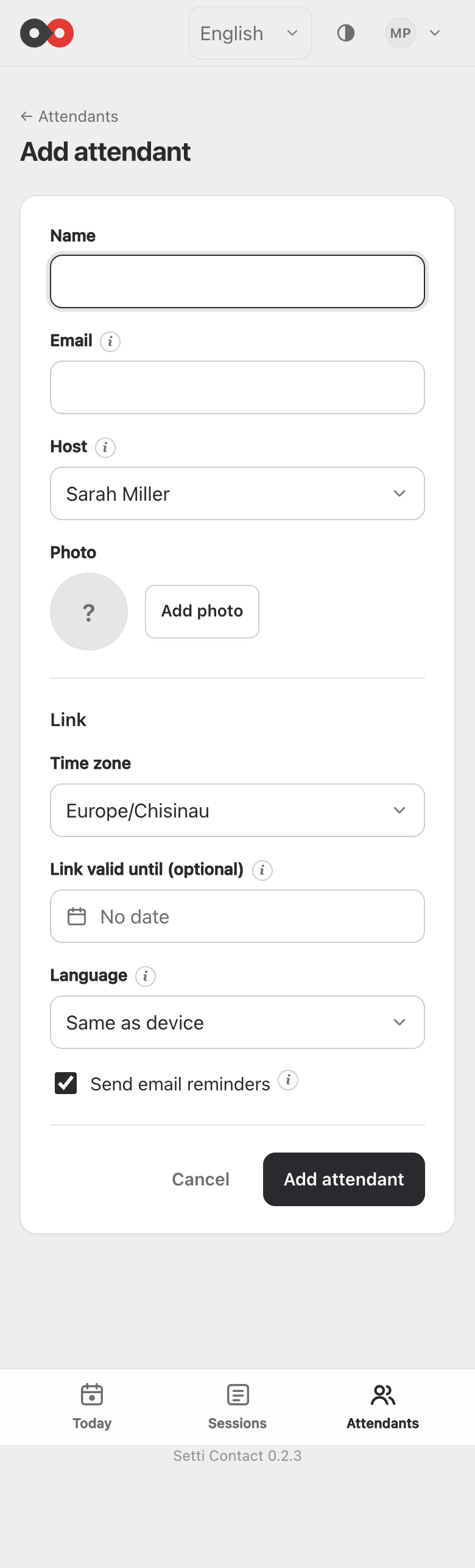
If someone with the same email is already in Setti Contact, they are added to the list with the personal link they already have.
An attendant's page
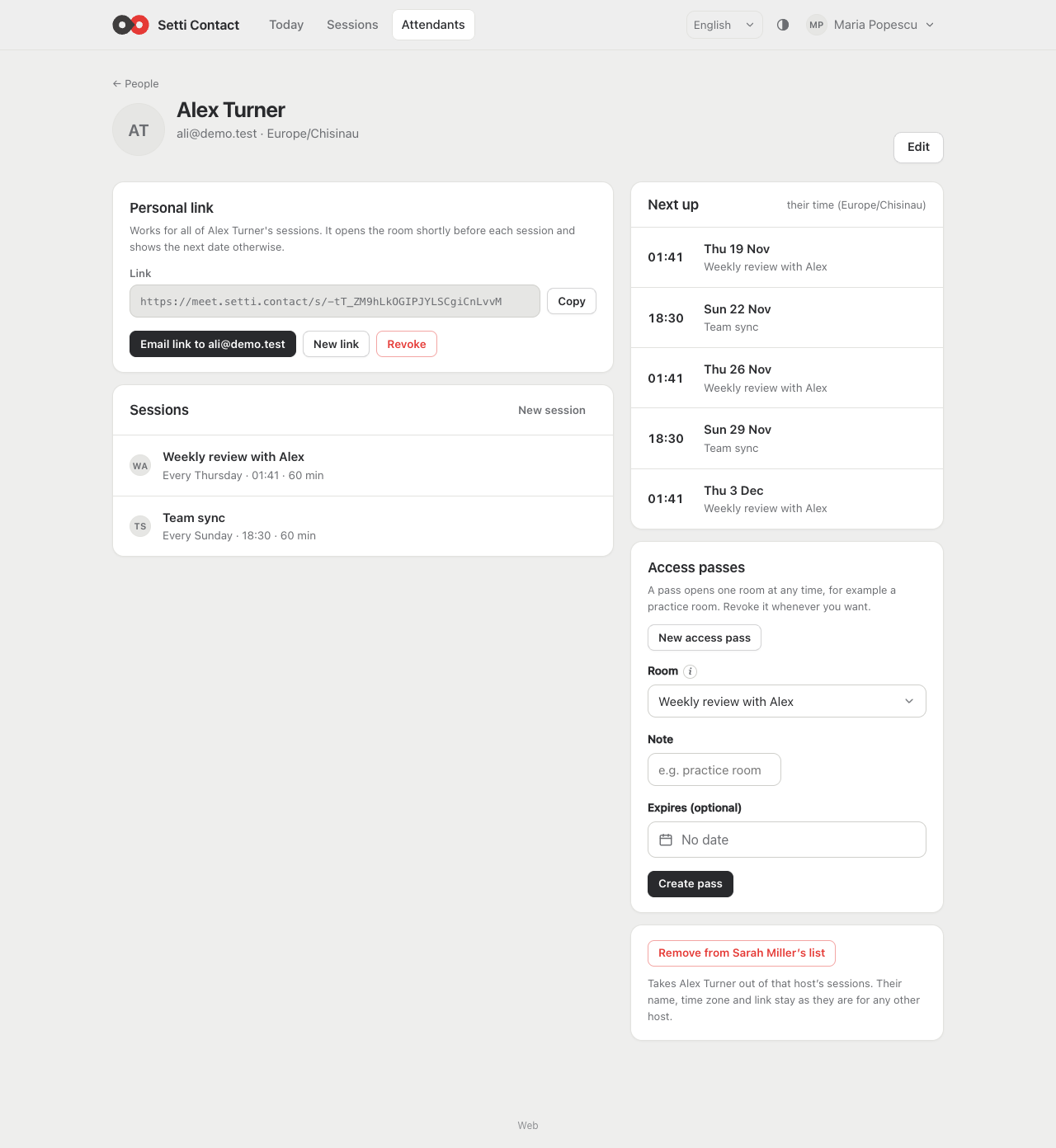
Press an attendant's name. On this page:
- Personal link: one link for all of their sessions. Copy it, or send it with Email link to … (their address).
- New link: the old link stops working at once (for when a link has reached someone else).
- Revoke: the attendant can't join until you issue a new link.
- Sessions and Next up: their sessions and upcoming dates, in their own time.
- Access passes: let them into one room at any time (for example a practice or drop-in room), with an optional expiry date.
- Remove from the host's list: takes them out of that host's sessions; nothing changes for other hosts.

1.4 Sessions
flowchart TB
  A["Sessions → New session"] --> B["Title, host, attendants"]
  B --> C["Date and time, length, weekly repeat"]
  C --> D["Waiting room, recording, microphone"]
  D --> E["Schedule"]
  E --> F["Booking email to the attendants"]
  F --> G["Reminder before each date"]
  G --> H["The room opens shortly before the start"]
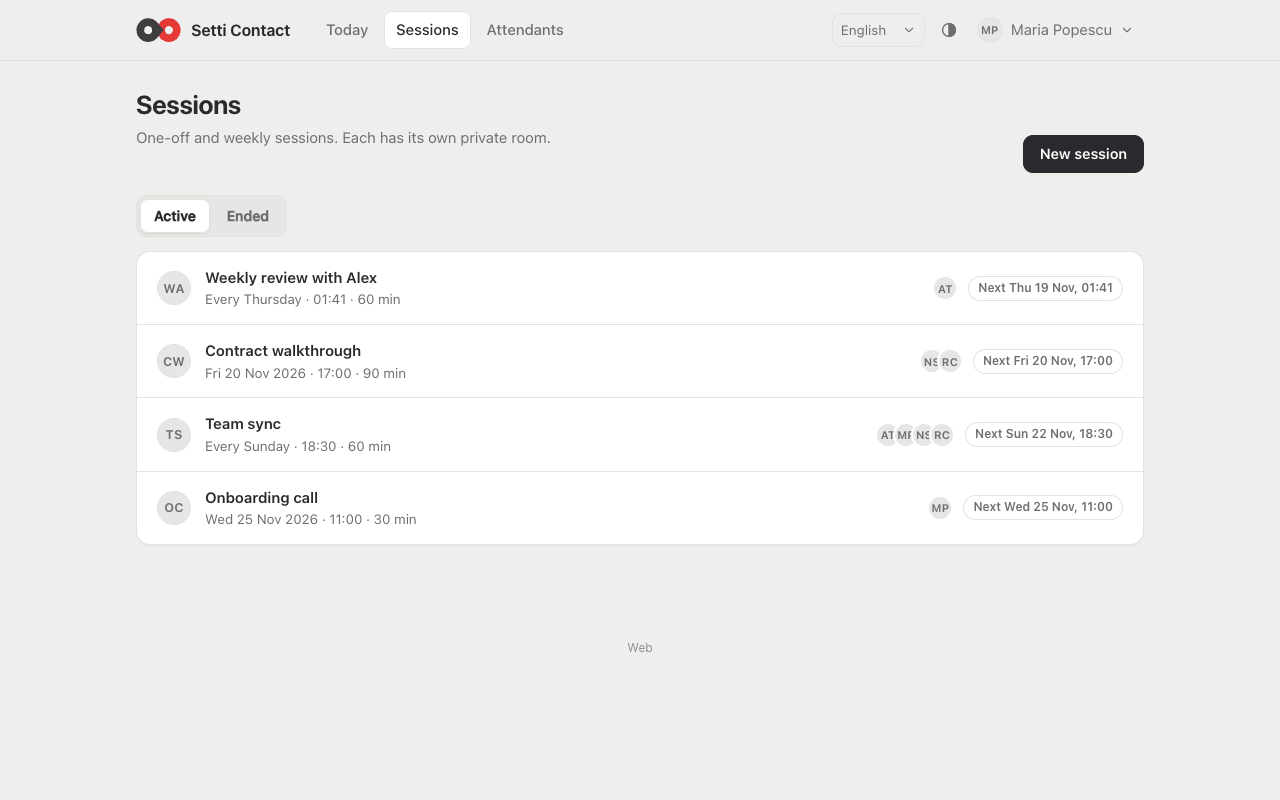
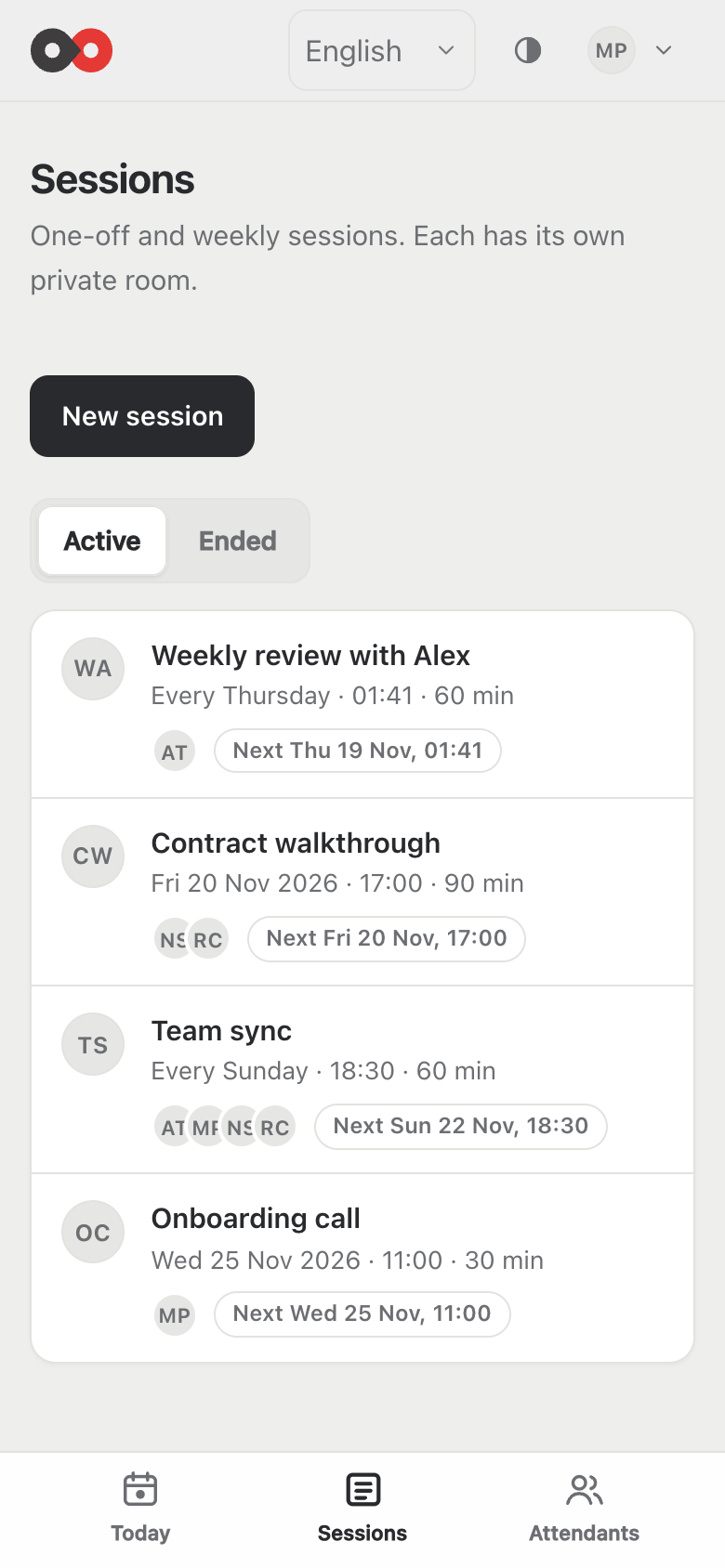
The list of sessions
Sessions in the top menu: each session with its date (or weekday, for weekly sessions), time and length. Use Active / Ended to see older sessions.
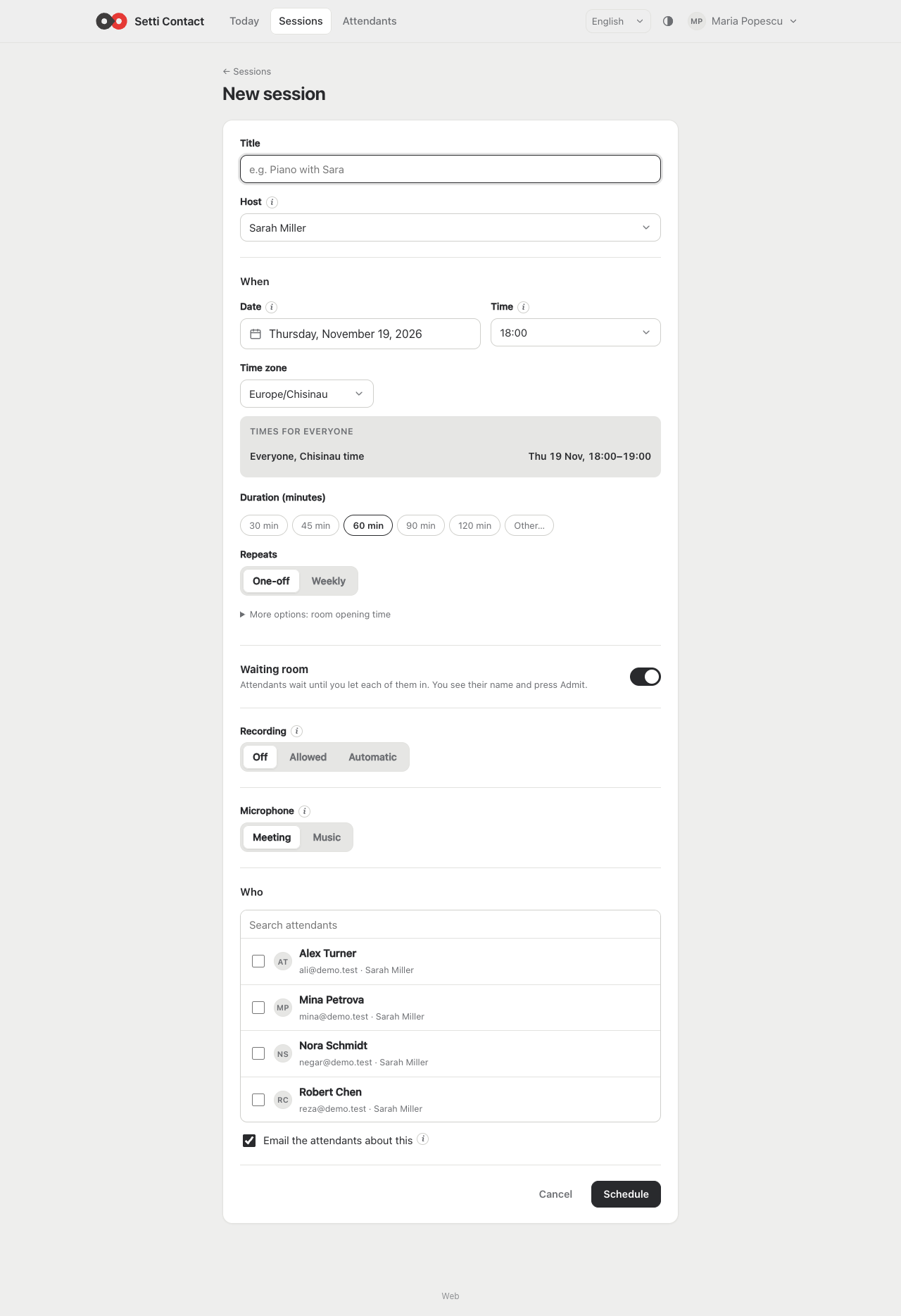
A new session
Press New session:
- Title: for Medical & therapy accounts, titles never appear in emails.
- Host and Who: only the host's own attendants are listed; search to find them.
- Date, Time, Time zone, Duration.
- Times for everyone: the session time in each attendant's own time zone.
- Repeats: one-off or weekly (with an optional end date). More options sets how early the room opens.
- Waiting room: attendants wait until the host lets each of them in.
- Recording: off, allowed or automatic (see 2.3); shown only for hosts allowed to record.
- Microphone: Meeting for conversation (echo cancellation on); Music for instrument lessons (unprocessed sound; everyone uses headphones).
- Email the attendants about this: a booking email with a calendar file.

A session's page
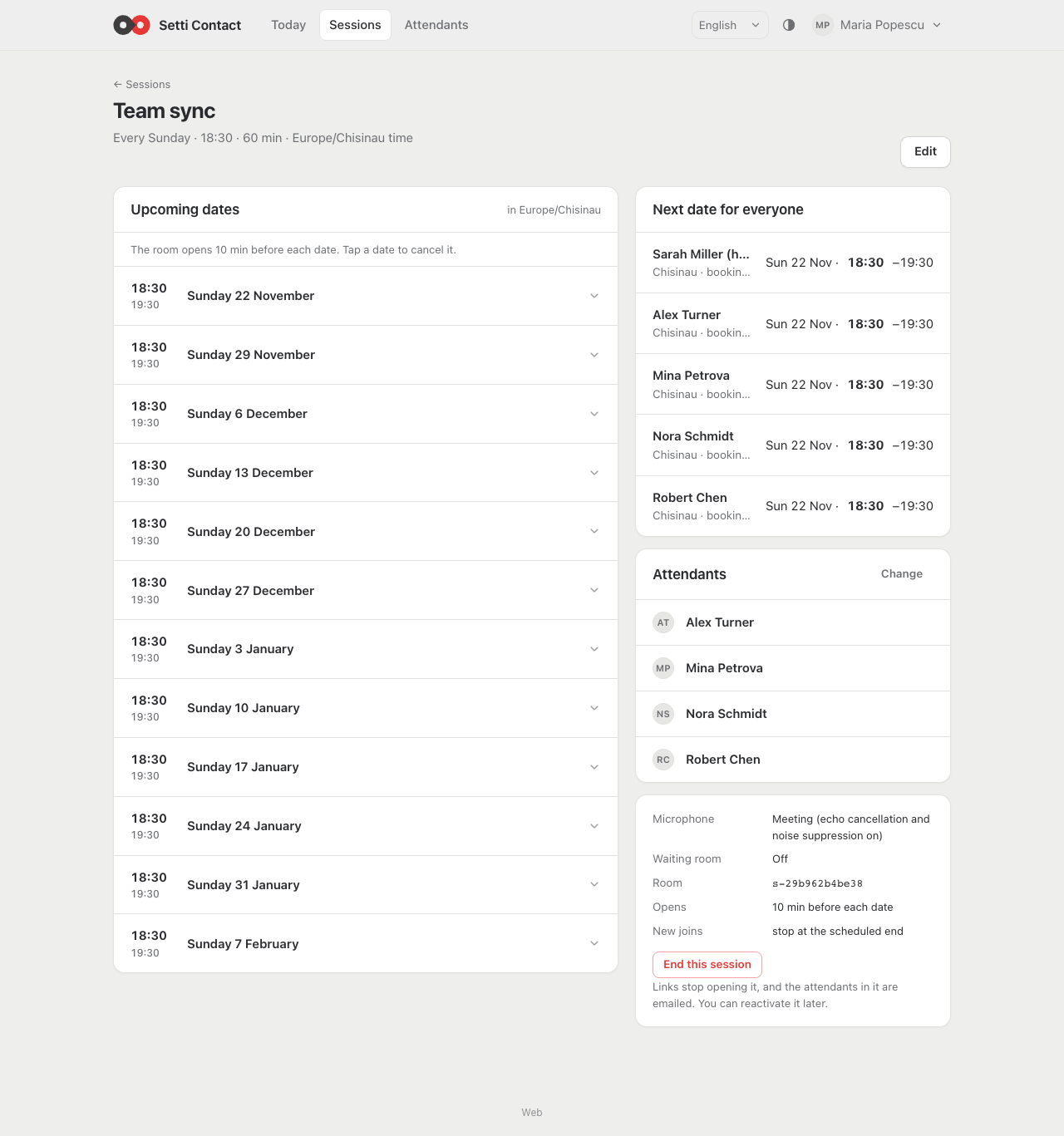
Press a session. Edit changes its time or people (everyone is emailed if the time changes). Under Upcoming dates you can Cancel one date and Restore it later; no reminder goes out for a cancelled date. End this session closes all later dates.

1.5 Calendar
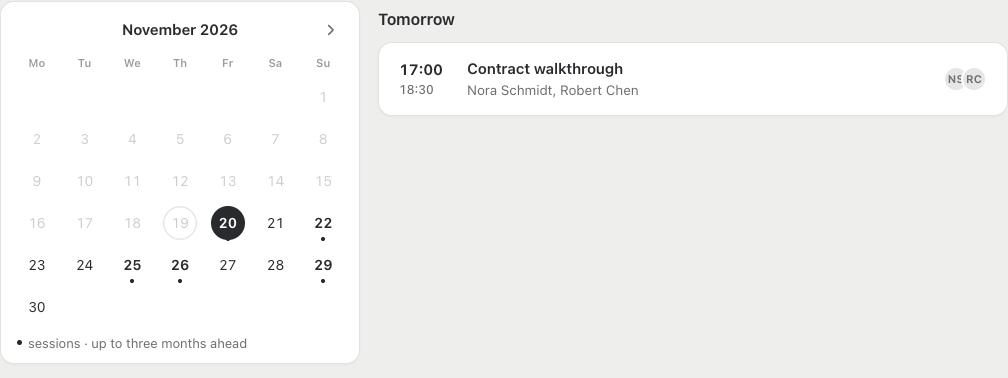
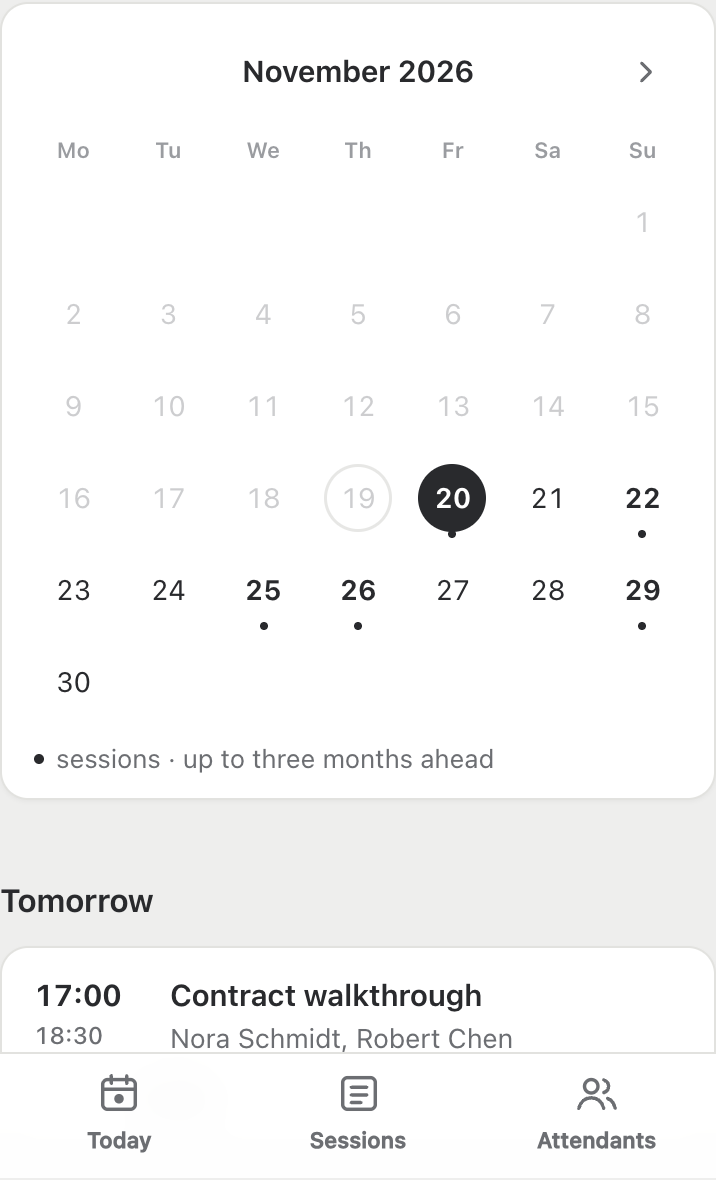
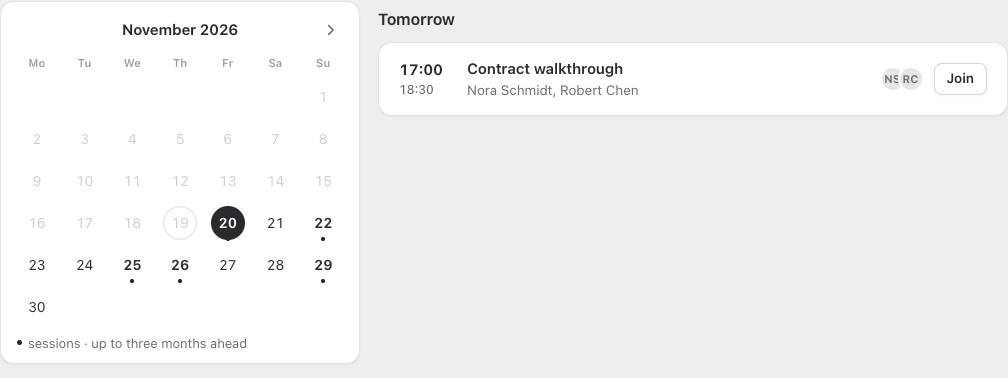
Today shows a calendar for the next three months. Days with sessions have a dot; press a day to see its sessions beside the calendar.
1.6 Host accounts
A coordinator can create accounts for hosts of their own type (for example Business). Every host you create is assigned to you automatically, so you can manage their attendants and sessions. Open Accounts from the menu under your name: only your hosts are listed.
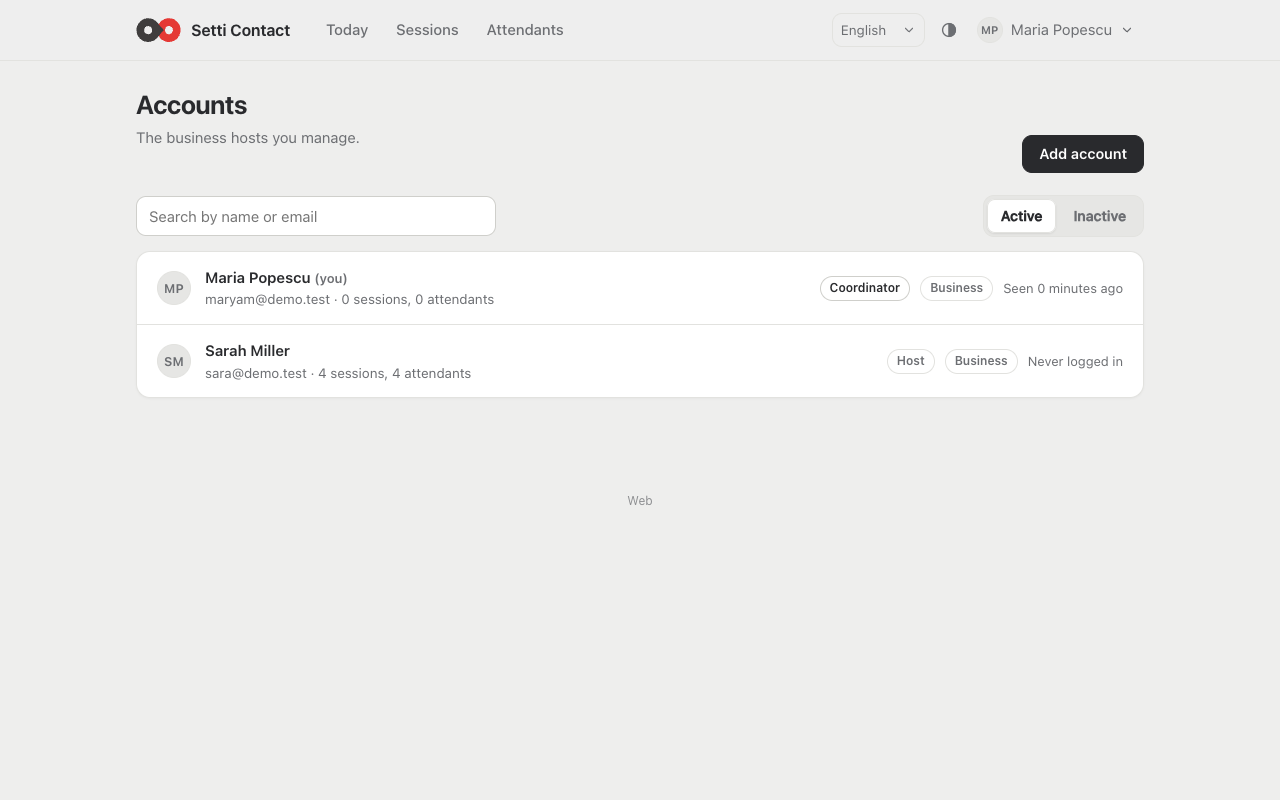
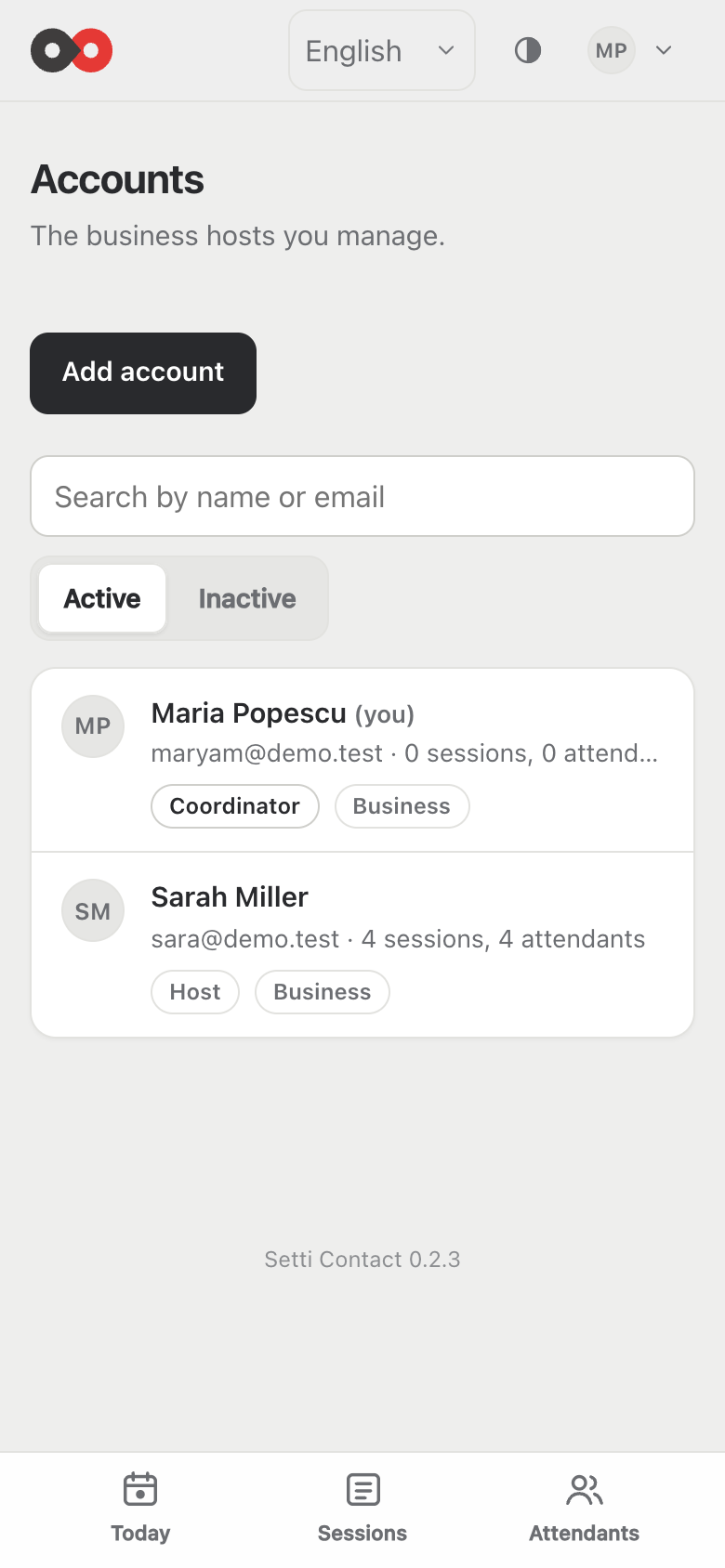
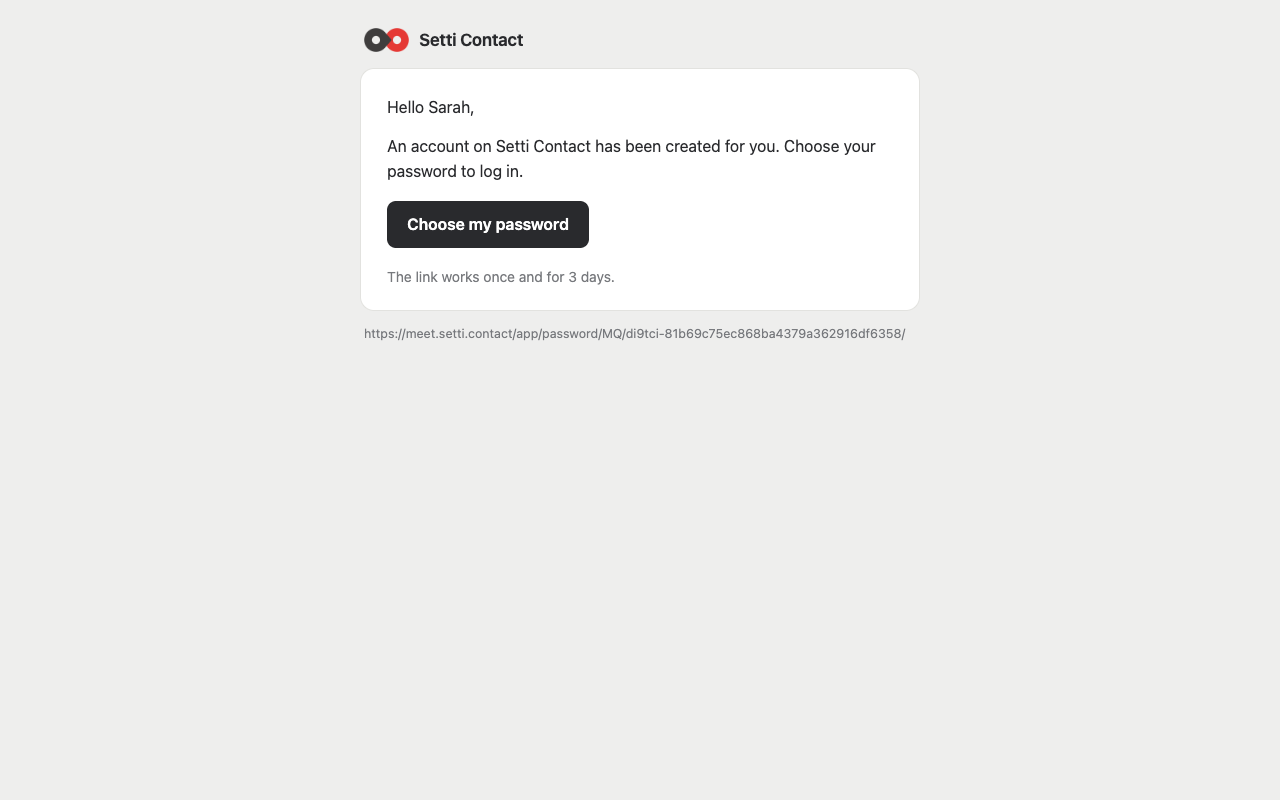
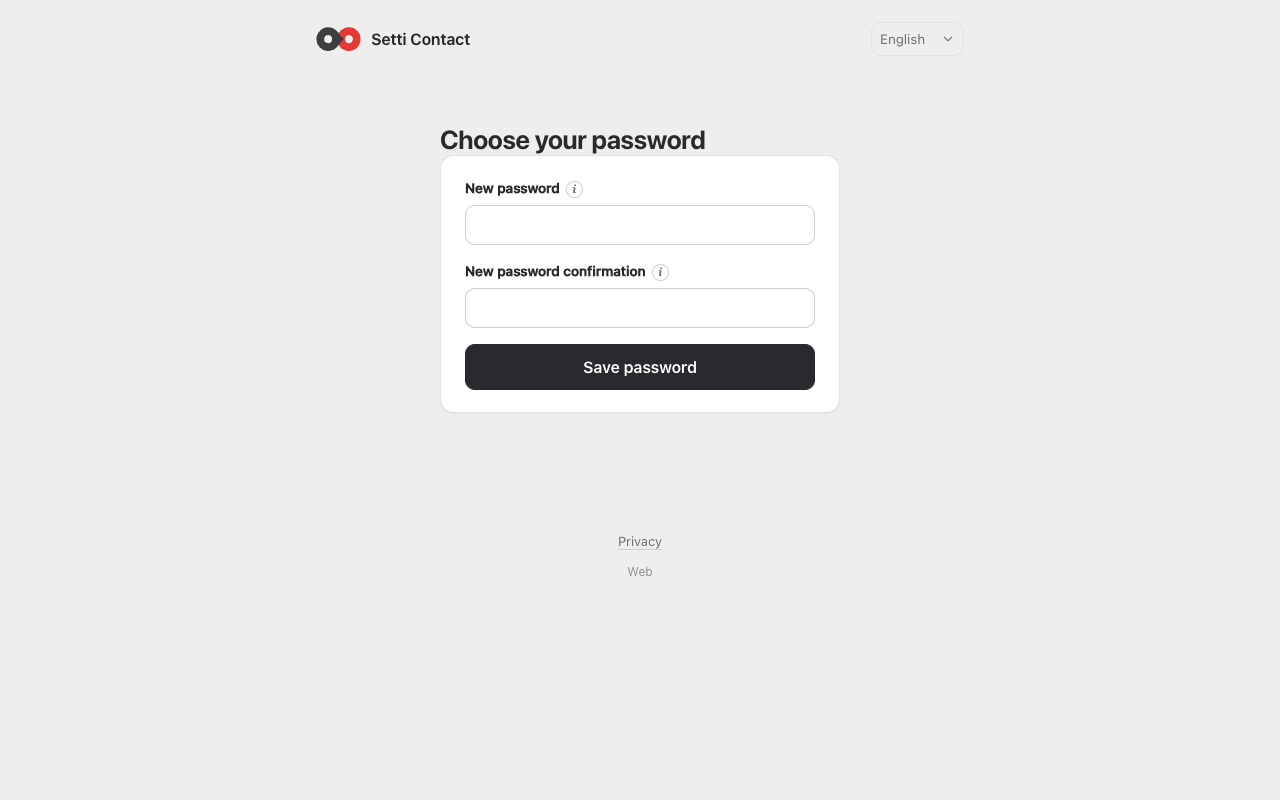
Add account: enter the name, the email (used to log in) and the time zone. You don't set the password: the host receives an email with a link to choose one. The link works once, for 3 days. If the host doesn't use it in time, the account and its sessions stay, but it has no password yet: press Send password reset link at the bottom of the account's page to send a new link, or the host presses Forgot your password? on the sign-in page.
flowchart TB
  A["Coordinator: Accounts → Add account"] --> B["Name, email, time zone"]
  B --> C["Account created (no password)"]
  C --> D["Host: email 'Set your password'"]
  D --> E["Chooses a password with the link (once, 3 days)"]
  E --> F["Host signs in"]
  E -.->|"link expired"| G["Send password reset link (coordinator) or 'Forgot your password?' (host)"]
  G --> E
The email the host receives, and the page where they choose a password:
Editing a host: you can change the name, time zone and whether the account is active, but not the email or password. If a host forgot their password, press Send password reset link at the bottom of their account's page so they choose a new one themselves. Allowing a host to record and assigning hosts to coordinators is done by an administrator.
Part 2: Hosts
A host does everything in Part 1 (attendants, sessions, calendar) for themselves. On top of that, hosts join the meeting room, record sessions, share recordings and set up their profile.
flowchart TB
  A["Today: Join"] --> B["Connecting (automatic)"]
  B --> C["Before joining: name, camera, microphone"]
  C --> D["The call"]
  D -->|"if recording is on"| E["The chosen people are recorded"]
  D --> F["Leave the call"]
  E --> G["Recordings: watch, download"]
  G --> H["Public link or email to the attendants"]
2.0 Quick start: from nothing to your first session
-
Add an attendant (for a client or student who works with you regularly): in the top menu Attendants → Add attendant. Enter the name and email, choose their time zone and language, and press Save. Setti Contact makes a personal link for them: one link for all of their sessions, sent to them by email. All the options are in 1.3.
-
Create the session: Sessions → New session and fill in:
- Title, for example "Strategy review with Anna".
- Who: one or more people from your list. This is optional: you can choose nobody and send only a guest link (2.7).
- Date, Time, Time zone and Duration; Repeats (one-off or weekly).
- Microphone: Meeting for conversation, Music for instrument lessons.
- Waiting room (2.8) and Recording (2.3).
- Leave Email the attendants about this on, so they get the booking email with a calendar file. Then press Schedule.
-
Invite: the attendants you chose get the booking email and a reminder before each date, and join with their personal link. For someone who is not on your list, make a guest link on the session's page and send it to them (2.7).
Fastest way for a one-off guest: on Today press Start an instant meeting, type the guest's name and press Get link, then send the link. No attendant to add and no session to create (section "Start an instant meeting", just before 2.7).
- On the day: press Join on Today (2.1). The room opens for attendants shortly before the start; you can join whenever you like.
2.1 Joining the room
On Today, a session that is live shows in red with a Join button. End room under it closes the room for everyone, for example when the session is over and someone is still in it.
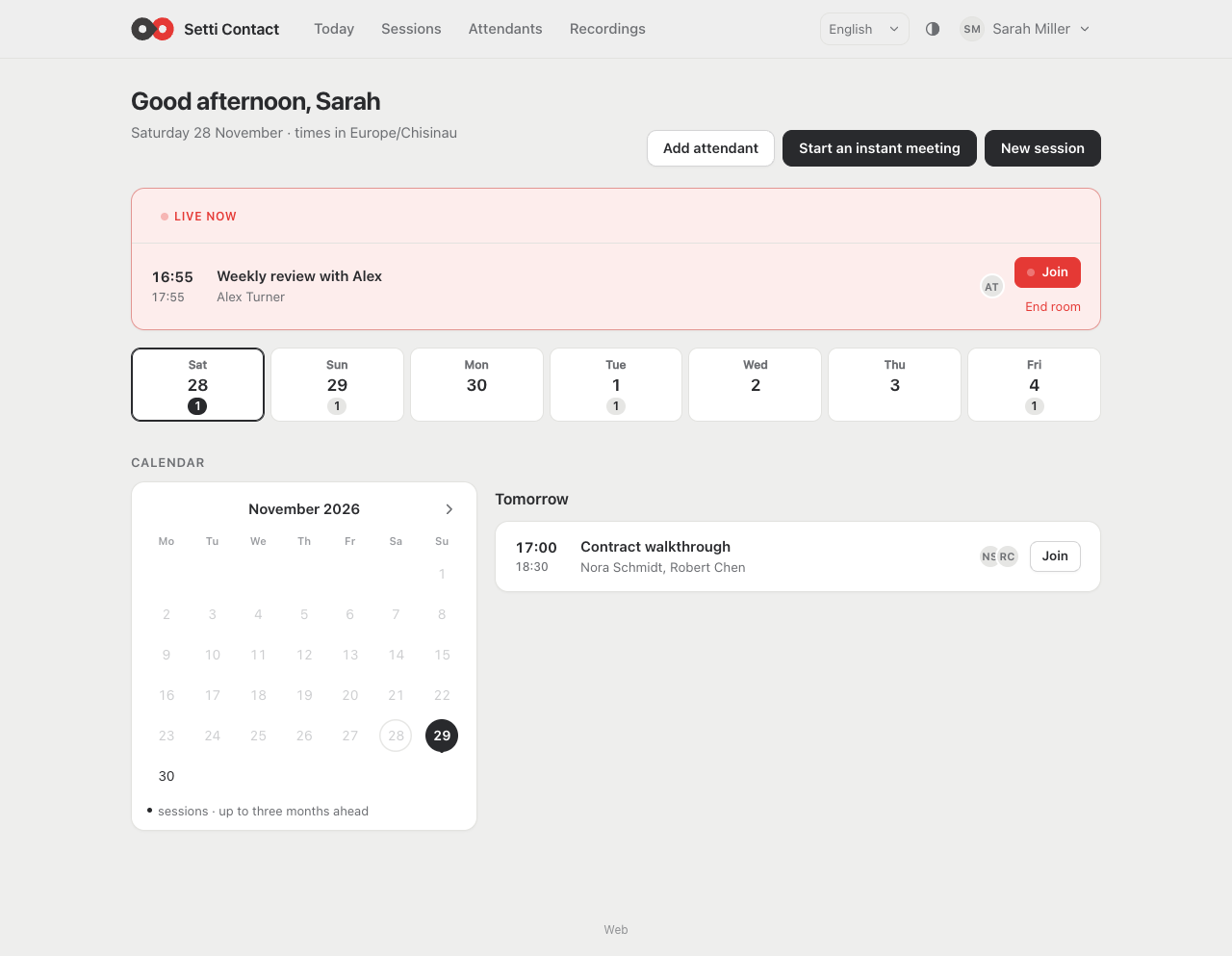
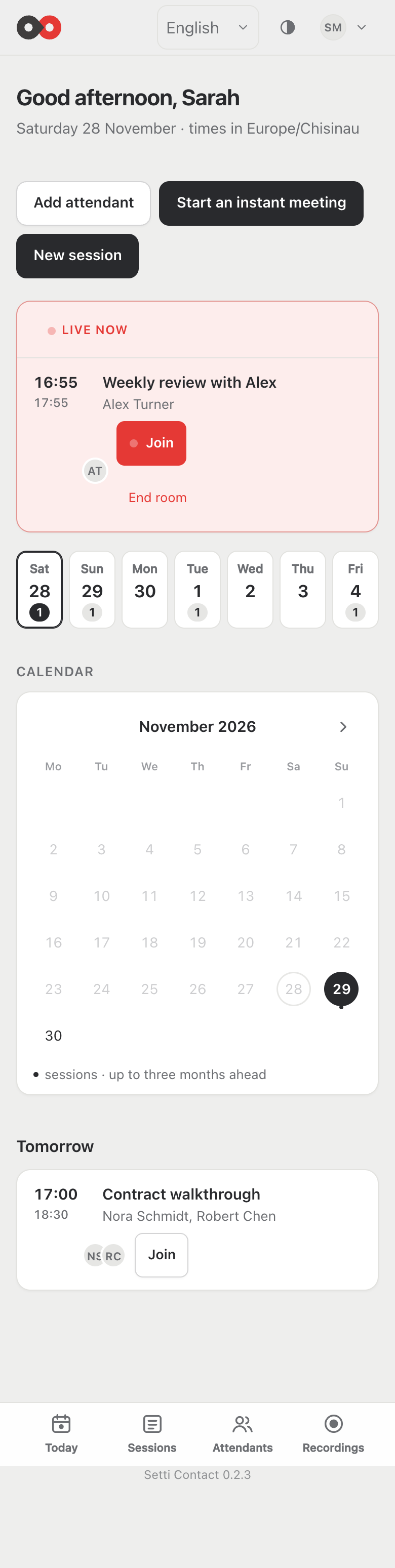
Today also has the Start an instant meeting button: it makes a guest link for someone who has to join right now (section "Start an instant meeting", just before 2.7).
Each session's page has an Open the room button too:
2.2 The call
Before you join, a page shows your name, your camera picture and your microphone. Press Join meeting.
In the call, the session title and the time since the start are at the top.
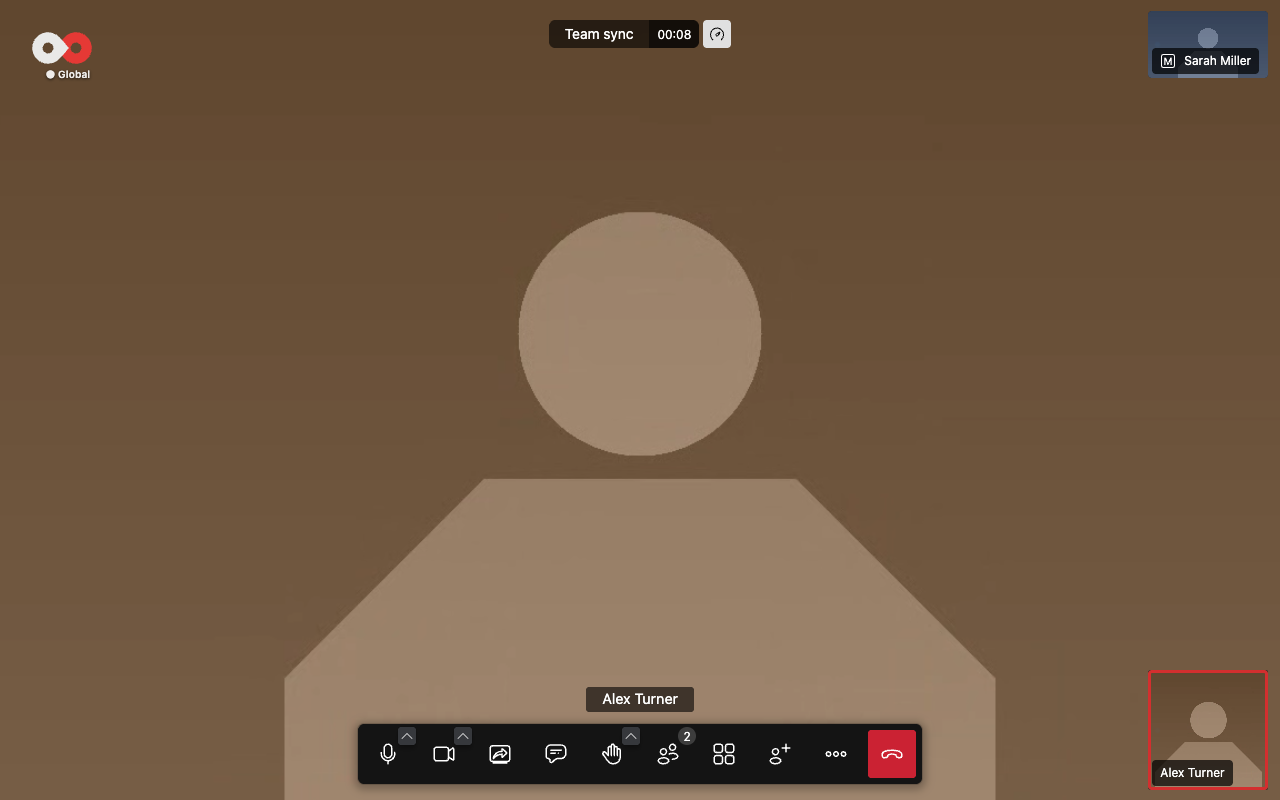
The toolbar

| Button | What it does |
|---|---|
| Microphone | Mute and unmute; the arrow next to it chooses the microphone and speaker |
| Camera | Turn your picture off and on; the arrow chooses the camera |
| Share screen | Show your screen or one window |
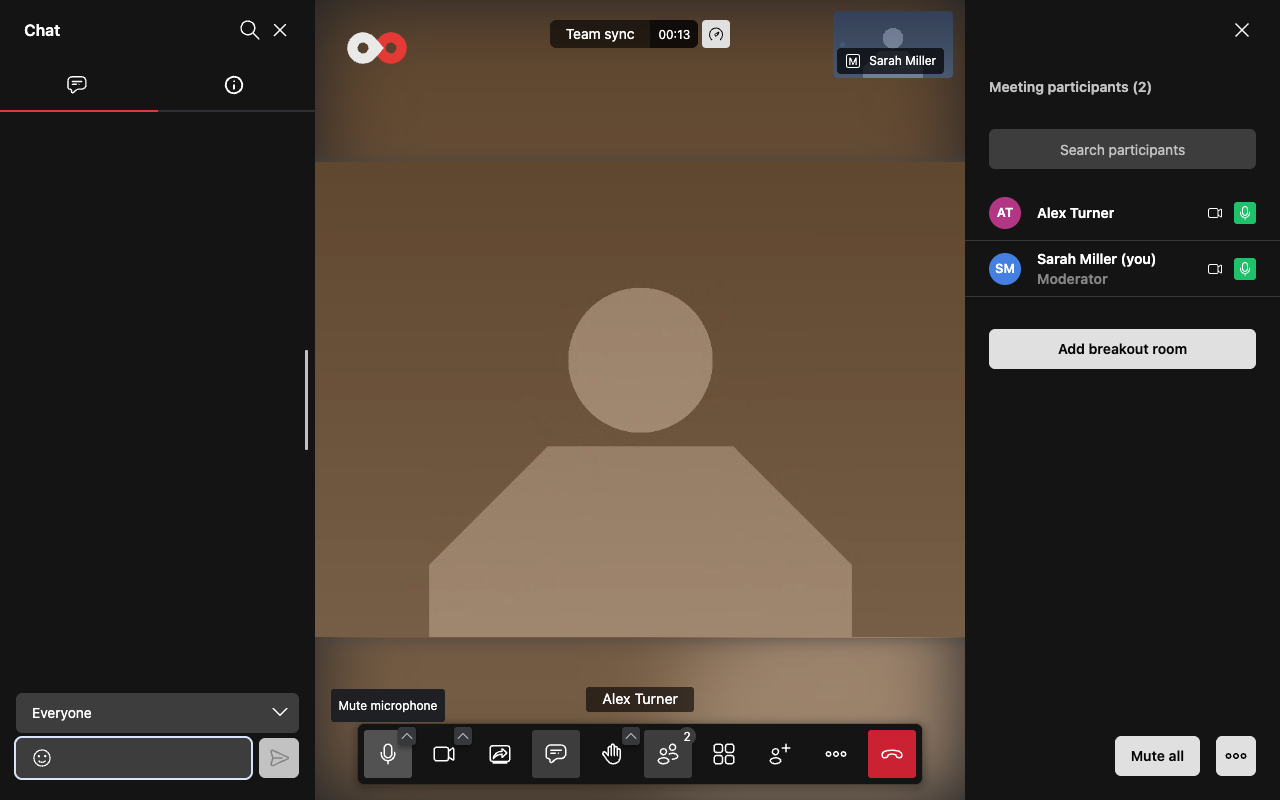
| Chat | Write to everyone, or to one person |
| Hand | Raise your hand; reactions (arrow) |
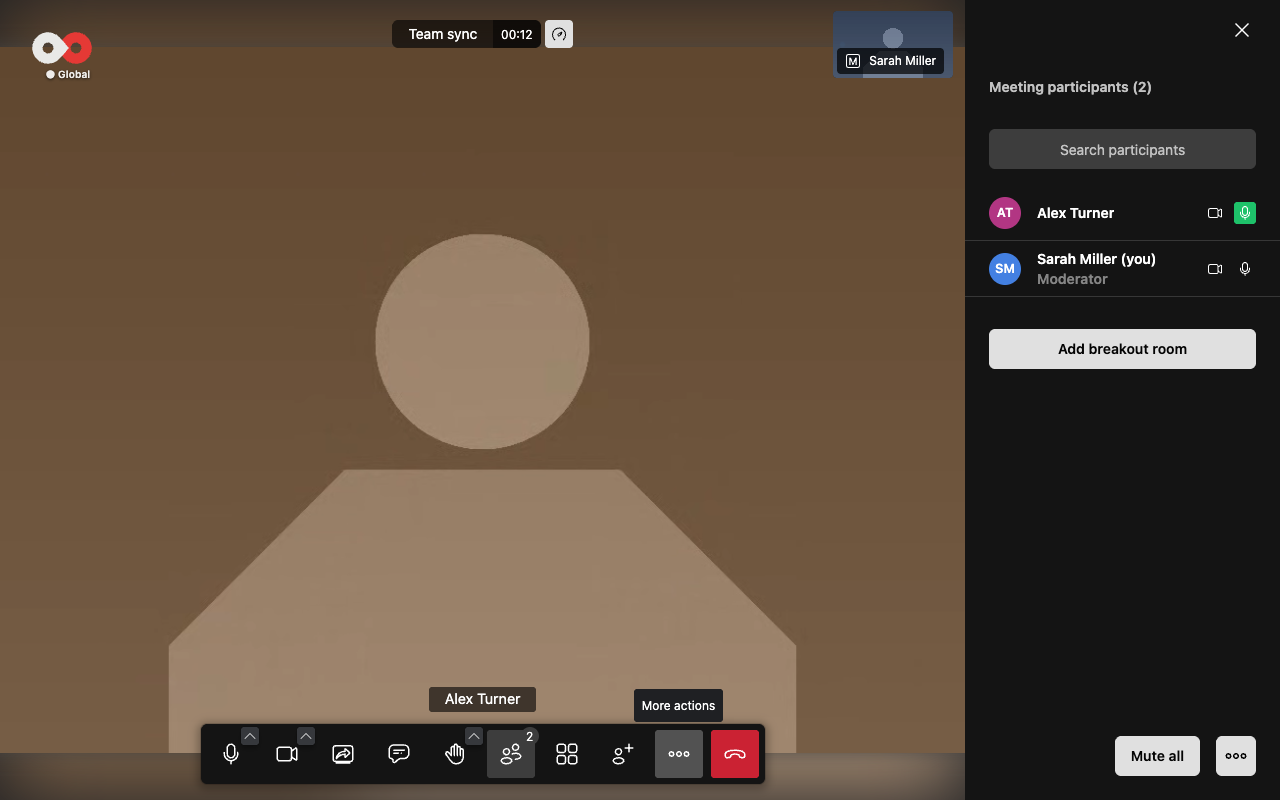
| Participants | Who is in the call |
| Tile view | Everyone in tiles of the same size |
| More actions (…) | The full menu: recording, settings, full screen and more |
| Red | Leave the call |
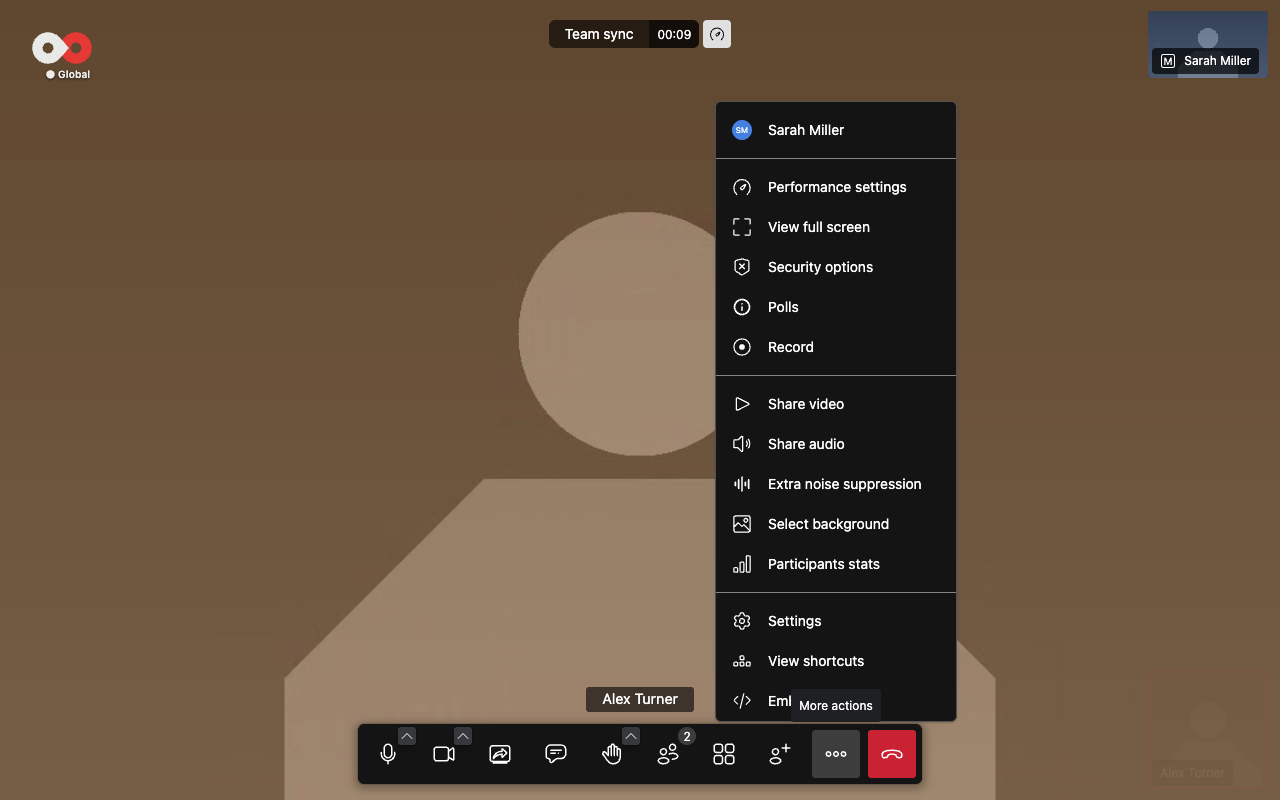
The More actions menu
Here you find Performance settings (picture quality for a weak connection), View full screen, Record (start and stop, if recording is allowed for the session), Extra noise suppression, Select background and Settings (devices, display name, language).
Participants, chat and tile view
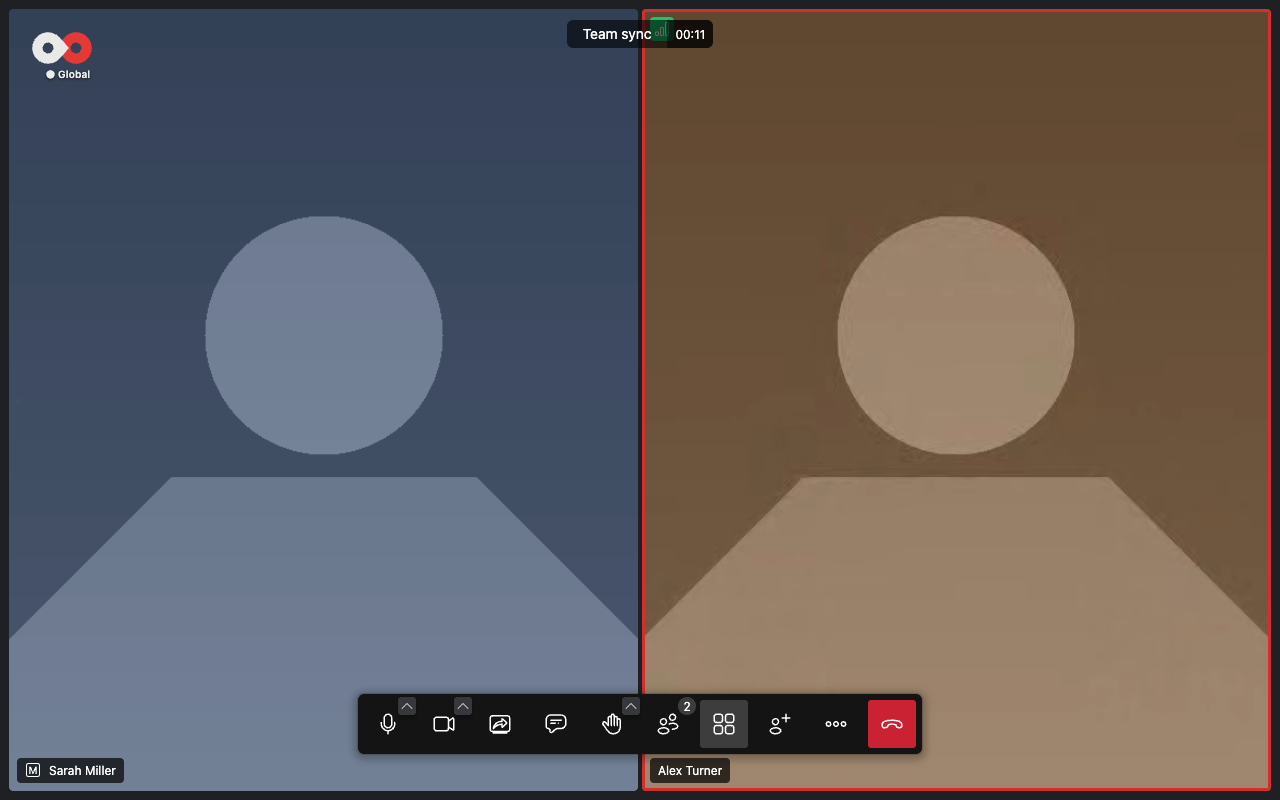
Good to know:
- Music sessions have echo cancellation off: everyone must use headphones, or the sound comes back.
- With a waiting room, attendants knock when they arrive: you see their name and press Admit.
- If you reload the page or lose the connection, join again with the same Join button (attendants: with their personal link).
- The call's own invite link can't be used to join: attendants always join with their personal link.
2.3 Recording
Recording is only for accounts an administrator has allowed. In the session form it has two settings.
Recording:
- Off: no recording.
- Allowed: the host starts and stops it during the call from More actions → Record.
- Automatic: it starts when the host joins.
Who is recorded:
- Only the host: the host's picture, with the sound of the session.
- Only the attendants: each attendant (and each guest) in a file of their own, with the sound of the session; no file is made for the host. For example for an instrument lesson, when you want to watch the student play afterwards.
- Side by side: each person in a separate file, and the next morning one more file that shows everyone side by side.
When someone shares their screen, their own file shows it. Everyone in the call sees the recording label. If someone drops out and comes back, the recording carries on. In Medical & therapy sessions, attendants are recorded only if every attendant agrees: each is asked when they join, and if anyone says no, only the host is recorded.
Your recordings
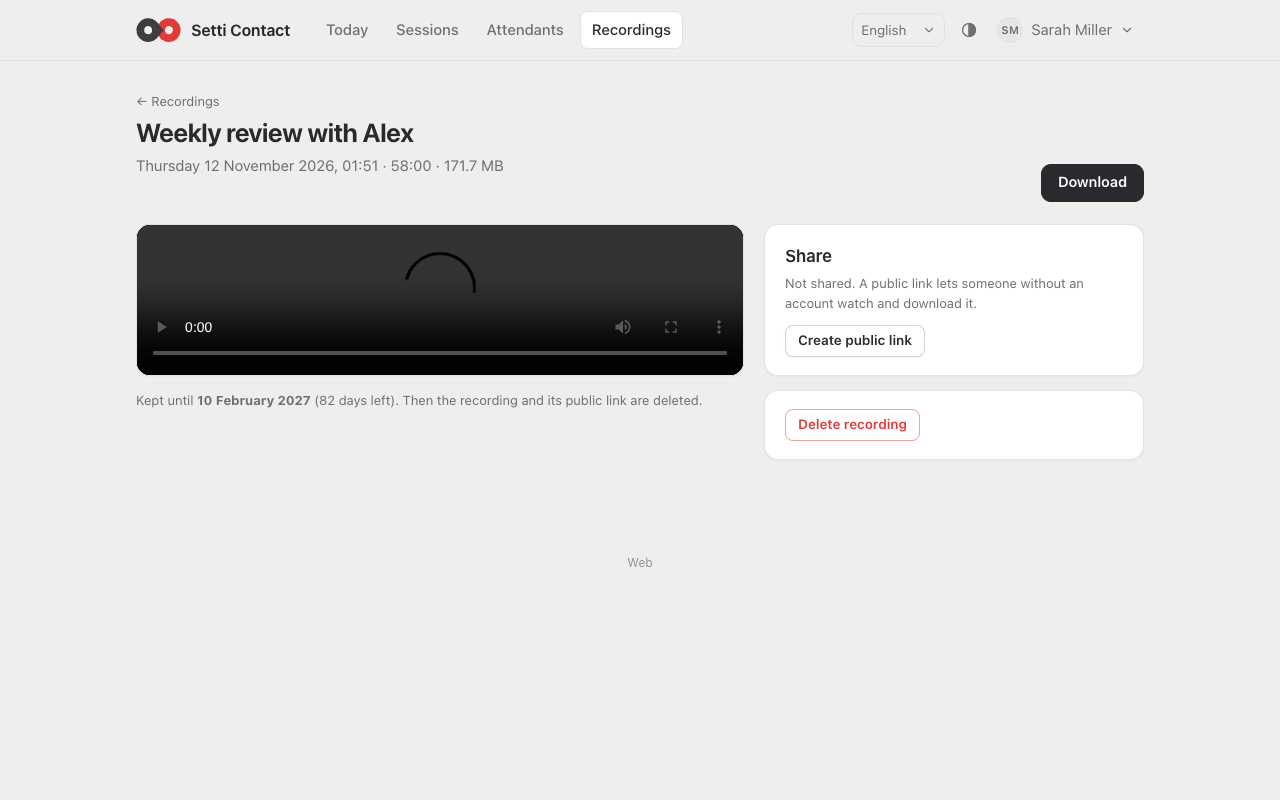
Recordings in the top menu. Next to each recording you see its length and the total size of all its files. Each recording is kept for a set time (depending on your account type), and the days left are shown on its page. You get an email 2 days before recordings are deleted, with a download link for each.
A recording's page
Each file has its own player, with the person's name above it (guests appear as "Guest"). Share: Make a public link (anyone with the link can watch and download until it expires) or Email the link to the attendants. Stop sharing turns the link off, and Delete recording removes it for good.
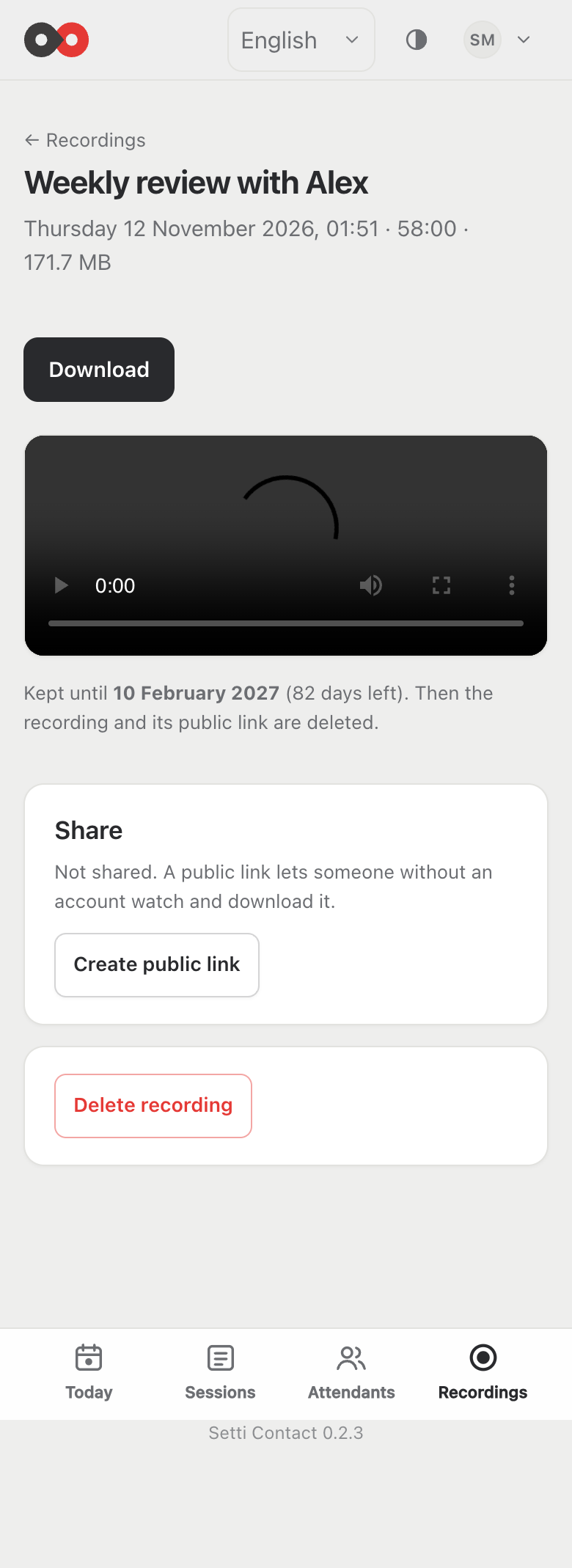
Download and conversion on the device
The Download button next to each file offers four choices:
| Choice | What you get |
|---|---|
| Original (as recorded, WebM) | The file exactly as recorded, in the best quality. Most computer players open it, but the iPhone gallery and WhatsApp don't. |
| For phones and WhatsApp (MP4, up to 720p) | An MP4 video that plays on every phone, in the gallery and in WhatsApp. |
| Small file (MP4, up to 480p) | The same, smaller; for sending over a slow connection. |
| Sound only (M4A) | Only the sound of the session, for example to listen to a lesson again. |
The last three are converted on your own device, not on the server: the file is converted while it downloads and only the result is saved. The result is never bigger than the original.
- Under the player you see a progress bar and a Cancel button. Keep this page (or the app) open until it is done. A 17-minute lesson takes about a minute on a computer, a little longer on a phone.
- Computer: the file goes to your downloads folder (in Chrome and Edge you choose where to save it). In the Mac app it is saved in Downloads and shown in Finder.
- iPhone (app or Safari): when it is done, the share sheet opens: Save Video (gallery), Save to Files or WhatsApp.
- If a browser can't convert, only "Original" is offered. Conversion in the Android app is coming soon.
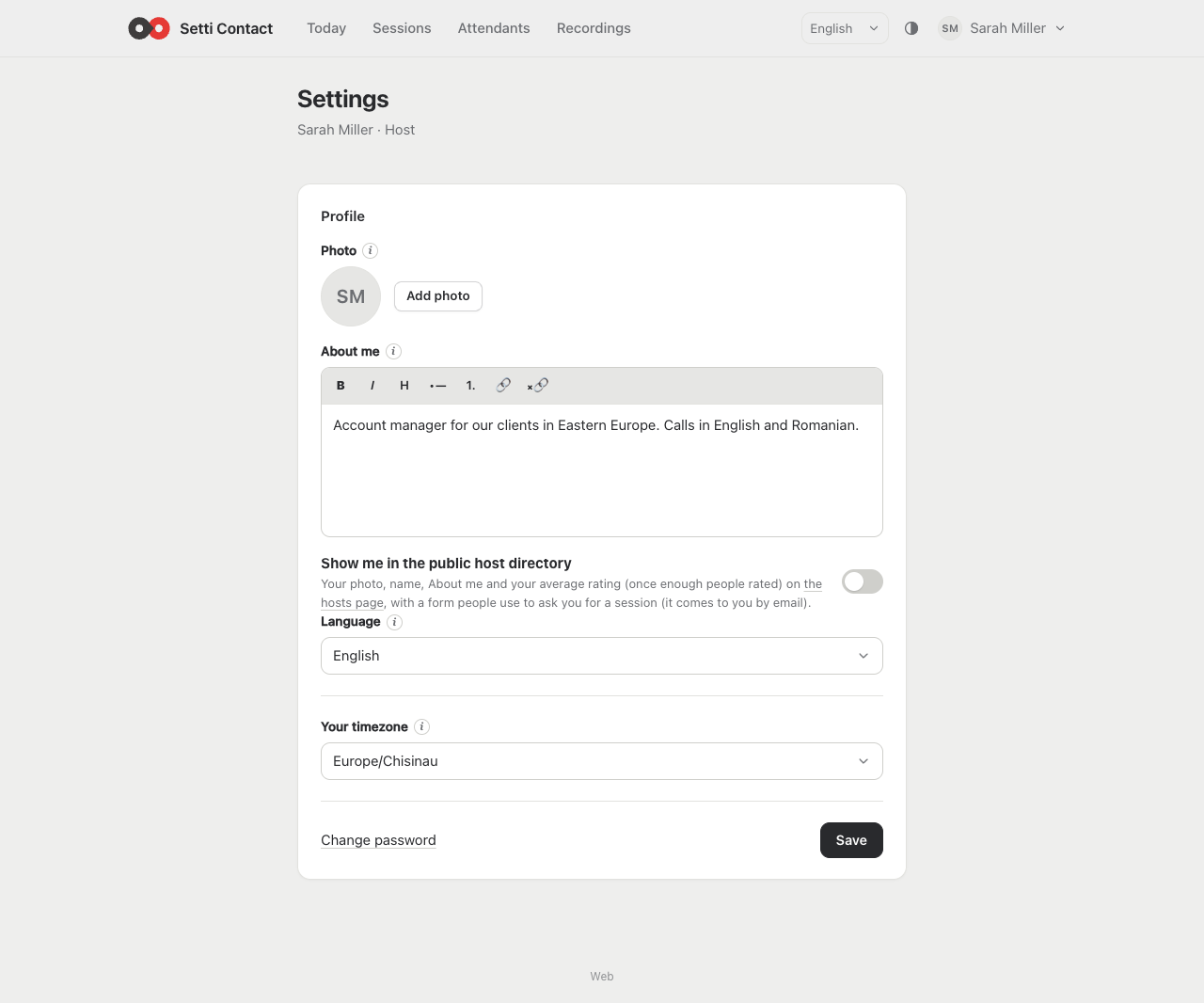
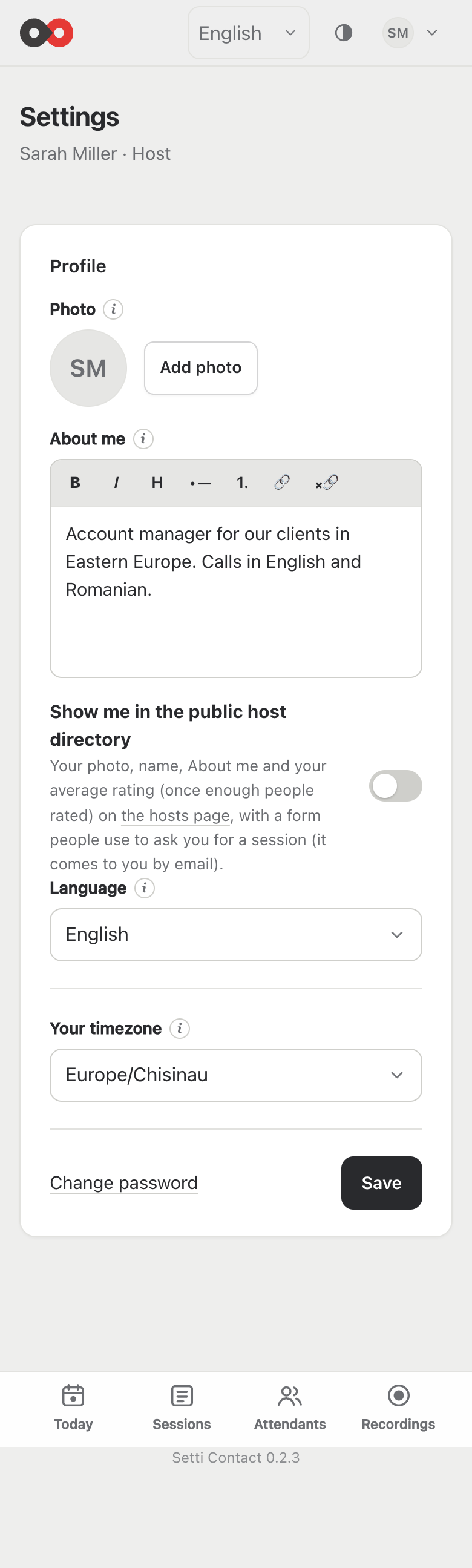
2.4 My settings
From the menu under your name, My settings:
- Photo and About me: shown to your attendants, next to your name on their link page.
- Show me in the public host directory: your photo, name, About me and average rating on the hosts page, with a form people use to ask you for a session (it reaches you by email).
- Language: the language of your pages and emails.
- Your timezone and Change password.
- Email me a copy: when one of your sessions is booked, moved, cancelled, restored or ended, you also get the email with the calendar file. It works with any email and calendar program.
- Calendar subscription: press Make my calendar link to get a private link. Add it to your calendar once; your sessions then appear there and update by themselves. In Apple Calendar (iPhone and Mac) the Add to Apple Calendar button does it, and updates arrive within minutes. Google and Outlook re-read the link only every few hours, so turn on Email me a copy as well if you use them. Don't give this link to anyone.
2.5 Calendar and ratings
The calendar on Today works as in 1.5. For Class and Medical & therapy accounts, Ratings shows what attendants thought after each session, anonymously; nothing is shown until several people have rated.
2.6 Meetings from your email calendar (Meet room)
You can schedule a Setti Contact meeting from your own email calendar (Outlook, Microsoft 365, Gmail, grommunio or any other) without opening Setti Contact. Invite the Meet room like any other guest:
| Meet room | Address |
|---|---|
| Setti Meet Room | [email protected] |
flowchart TB
  H["You, in your email calendar"] -->|"invite: attendees + Meet room"| R["Meet room"]
  H -->|"your normal invitation"| P["Attendees"]
  R -->|"creates the session"| S["Session in Setti Contact"]
  R -->|"reply 'Re:' with each person's own link"| P
  R -->|"your host link"| H
What happens
- The room accepts the invitation automatically: next to the room in your guest list you will see Accepted. That reply comes from the mail server.
- Within a minute or two the session appears in Setti Contact, with the same title, time and weekly repeat, and your attendees are added to your list.
- Each attendee receives an email "Re: your meeting title" from the room, in the same thread as your invitation, with their own personal link. You receive your host link the same way. If an attendee replies to that email, the reply comes to you.
- One condition: send the invitation from the email address of your Setti Contact host account. Invitations from any other address are ignored.
Changes and cancellations
Make every change in your email calendar, as usual. The session follows it.
- New time, length or title: the session changes too. Attendees get the update from your calendar; their links stay the same.
- New attendee: only the new person receives the room's email with their link.
- Cancelling the meeting, or one date of a series: the session (or that date) is cancelled too. Setti Contact sends no extra email: attendees already got your cancellation.
- Weekly repeats are followed. Daily or monthly repeats, and moving a single date of a series on its own, are not.
If your mailbox is at your own company (Microsoft 365, Google Workspace…)
Nothing needs to be set up on your side. Setti Contact can't see your calendar, so it works only from the emails the room receives. Our mail server checks that each email really comes from your company's domain, so forged invitations are rejected. Because the room only knows what it is sent, please keep these points in mind:
- Don't remove the Meet room from the meeting. To the room, being removed looks exactly like the meeting being cancelled: the session ends at once and the links your attendees received stop working, even though the meeting stays in everyone's calendar.
- Don't delete a meeting without sending the cancellation. When your mail program asks whether to send a cancellation to the guests, choose yes. Otherwise the room never hears about it and the session stays open.
- Send updates to all attendees. If you add someone and choose "send updates only to added or removed attendees", the room is not told, and the new person gets no link.
- If your list of sessions in Setti Contact ever differs from your calendar, correct the session on its page in Setti Contact.
- Your company's domain needs DMARC. The check relies on the DMARC record your company publishes for its domain (
_dmarc.yourcompany.com; a record withp=noneis enough), plus DKIM signing, which Microsoft 365 and Google Workspace do by default. Without it, the room can't confirm the invitation is yours and doesn't accept it. You then get an email from the room explaining why. Until your email administrator has set it up, create the session in Setti Contact directly.
Mailboxes on our own mail server (setti.contact addresses) don't have these limits: there, each invitation is checked against your own calendar.
Emails you receive as a host
| When | |
|---|---|
| Your host link ("Re: meeting title") | When the Meet room has created a session from your invitation |
| Recordings about to expire | 2 days before recordings are deleted automatically at the end of their retention period, with a list and a download link for each |
| Recordings deleted | After recordings were deleted at the end of their retention period (not for recordings you deleted yourself) |
For Medical & therapy sessions, these emails leave out the session title.
Start an instant meeting
If you don't want to set up an attendant and a session for a guest, this is the shortest way: in a few taps you get a one-time session and its guest link.
-
On Today, press Start an instant meeting.
-
Type the Guest's name. The Date is today and the Time is the current 15-minute slot, so the room is open right now; the Duration is 60 minutes. You can change any of them.
- Press Get link. The Guest link ready page opens: Copy takes the link, Copy message (on a phone also Share) takes a ready message to send. Open session shows the session's page and Another link opens the form again.
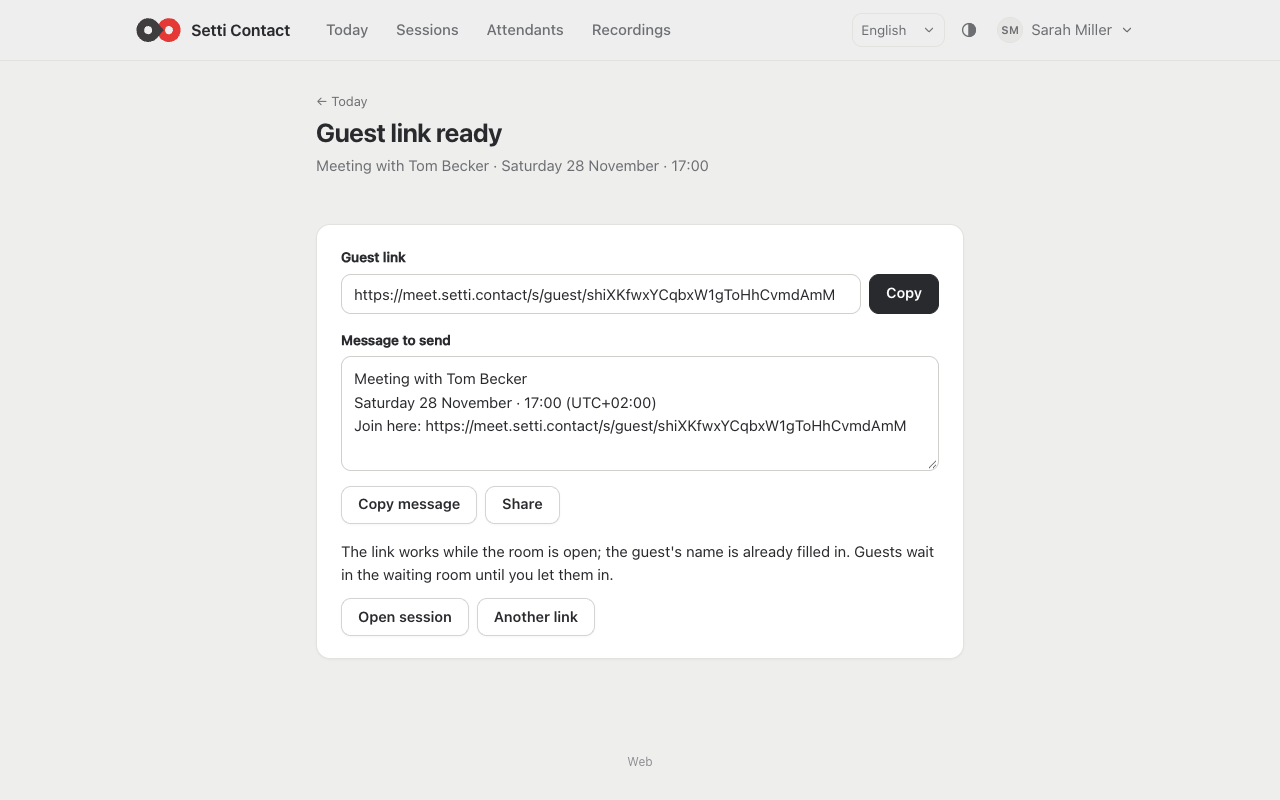
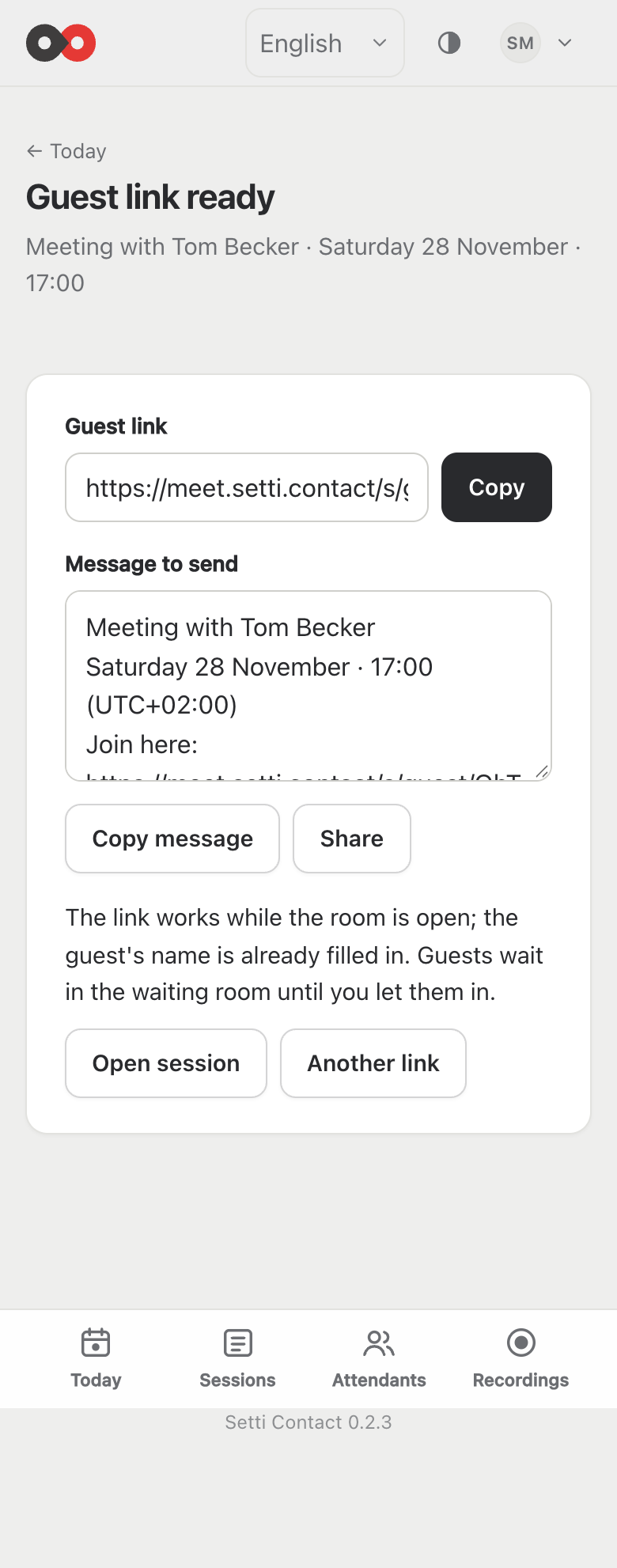
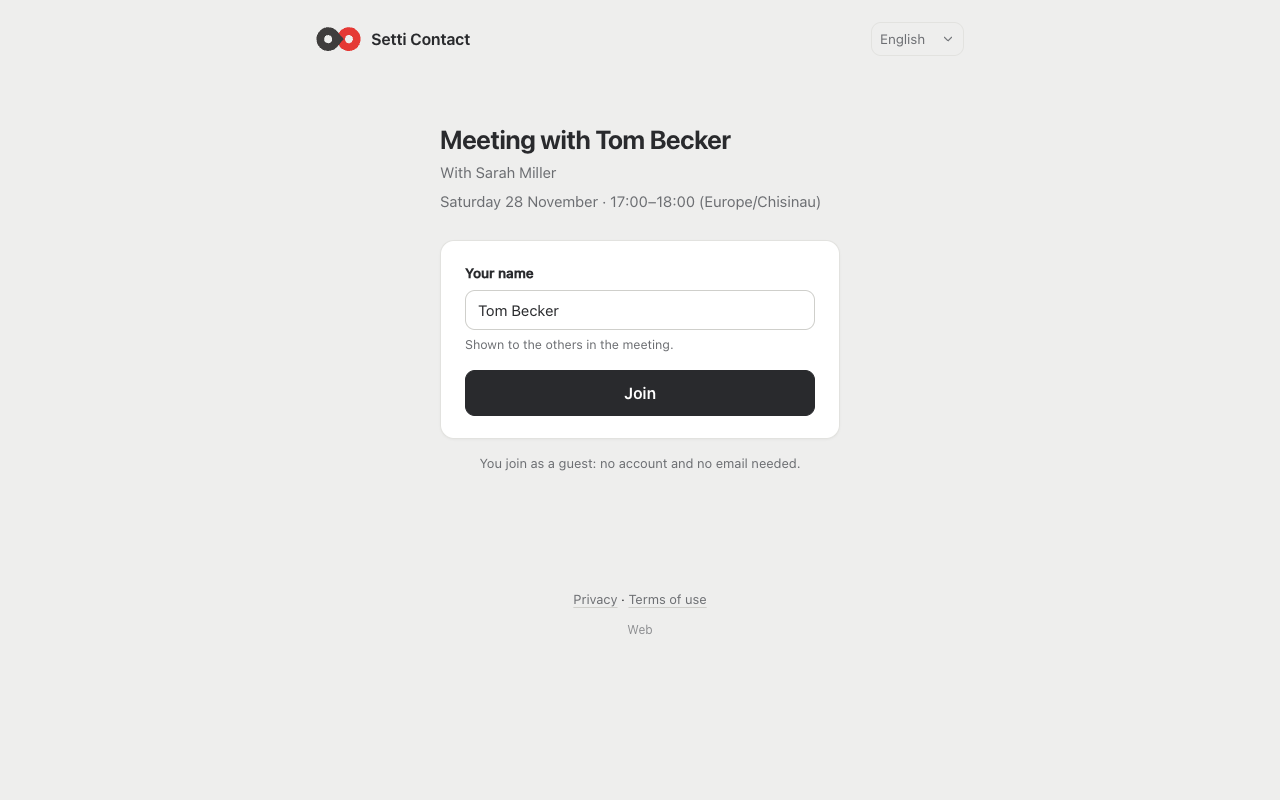
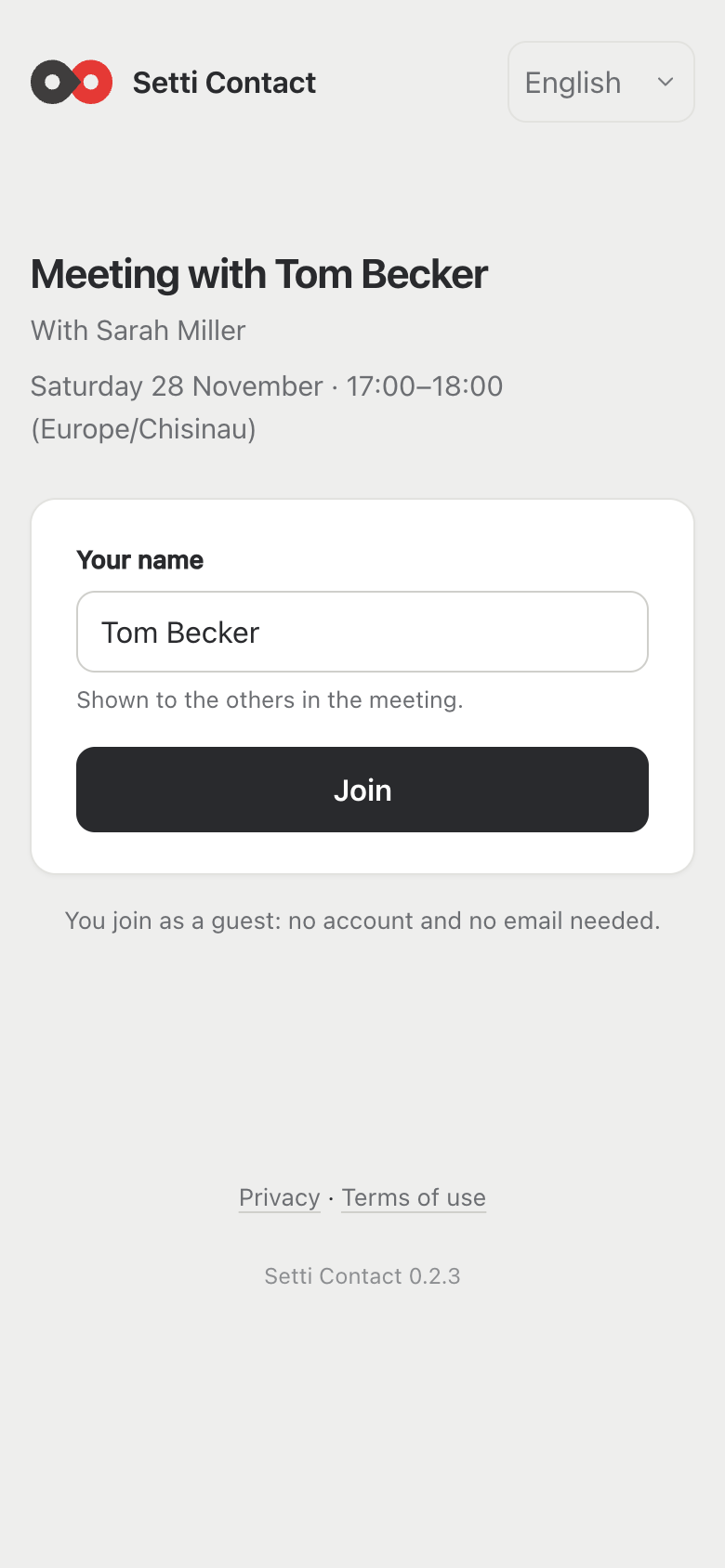
The session is made without attendants and is titled "Lesson with …" (Class accounts), "Session with …" (Medical & therapy) or "Meeting with …" (Business); for Class accounts the microphone is set to Music. When the guest opens the link, their name is already filled in and they only press Join. Guests always go through the waiting room and you let them in (2.8).
2.7 Guest links and sessions without attendants
A guest link is a link for one date of a session that anyone can open without being added to your list of attendants: they type their name and join. No account and no email are needed.
Use it for a one-off guest (a trial session, a listener, a colleague), or when you don't want to set up attendants: create the session without choosing anybody under Who and send only the guest link.
Making a guest link:
-
Open the session's page (Sessions → press the session).
-
Under Guest links, choose the date from the list. Take care to pick the right one: each date has its own link.
-
Press Make guest link, then Copy, and send the link to your guest by message or email.
When it works: from the moment that date's room opens (shortly before the start) until the end of the session. Before that, the page shows the start time; afterwards the link no longer works.
Security: anyone who has the link can join, even if your guest forwards it to somebody else. That is why guests always go through the waiting room and you let each person in yourself (2.8). Turn off disables the link at once.
| Personal link | Guest link | |
|---|---|---|
| For whom | An attendant you have added | Anyone who has the link |
| Which sessions | All of their sessions | One date of one session |
| Booking email and reminders | Yes | No (you send the link yourself) |
| In the recording | Under the attendant's name | Under the name "Guest" |
2.8 Waiting room
When Waiting room is on in the session form, attendants wait after they join until you let them in: in the call you see the name of the person who is knocking and admit them. It is off by default for Class sessions and on for the other types. Guests (2.7) always go through the waiting room.
If you have the app on your phone, you get a "Someone is waiting" notification when somebody arrives before you.
Part 3: Attendants
You don't need an account or a password. Everything works with your personal link; the same link works for all your sessions.
flowchart TB
  A["Booking email with your personal link"] --> B["Open the link"]
  B -->|"before the session"| C["Your sessions page: when the room opens"]
  C -->|"keep this page open"| D["The room opens"]
  B -->|"at session time"| D
  D --> E["Connecting (automatic, about a second)"]
  E --> F["Join the call"]
  F --> G["Afterwards: a rating (optional, anonymous)"]
3.1 The email and your personal link
When a session is booked for you, you get an email with the dates (in your own time), an Open my sessions button and a calendar file. A reminder comes before each session.
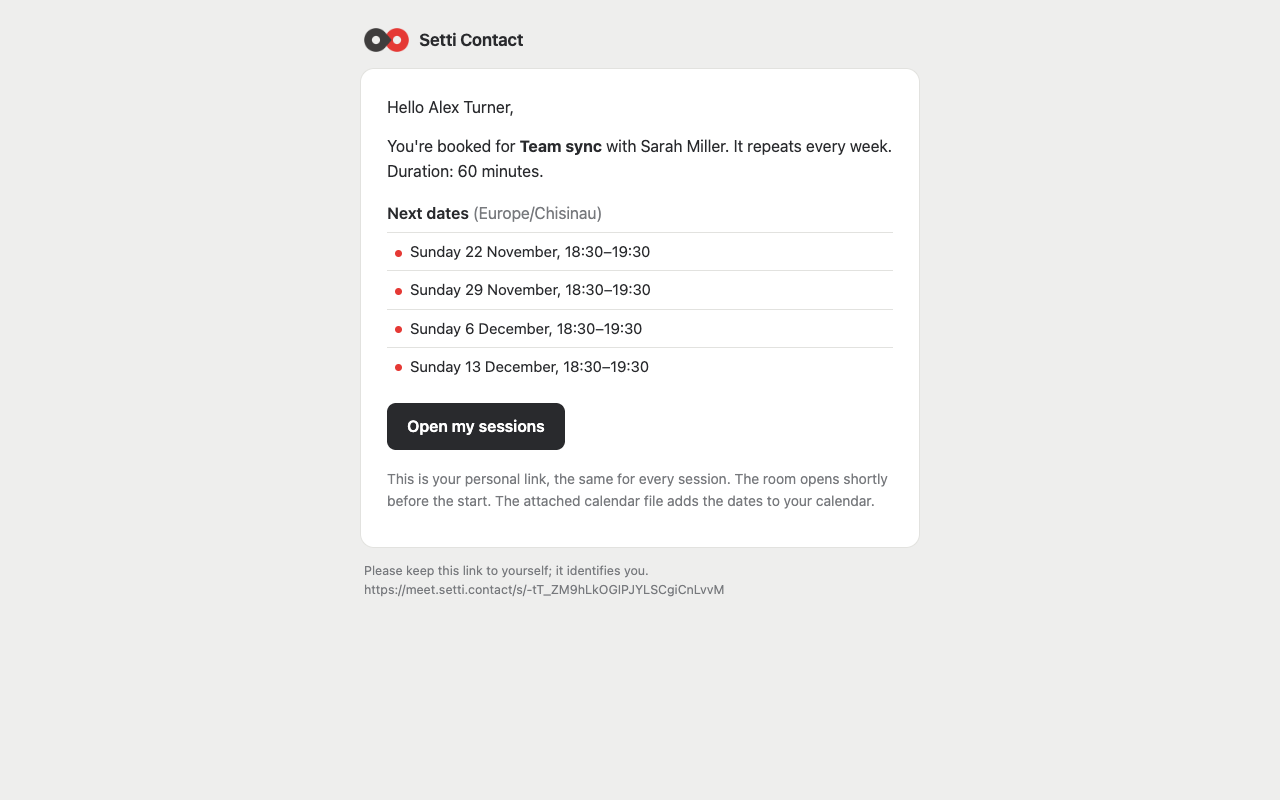
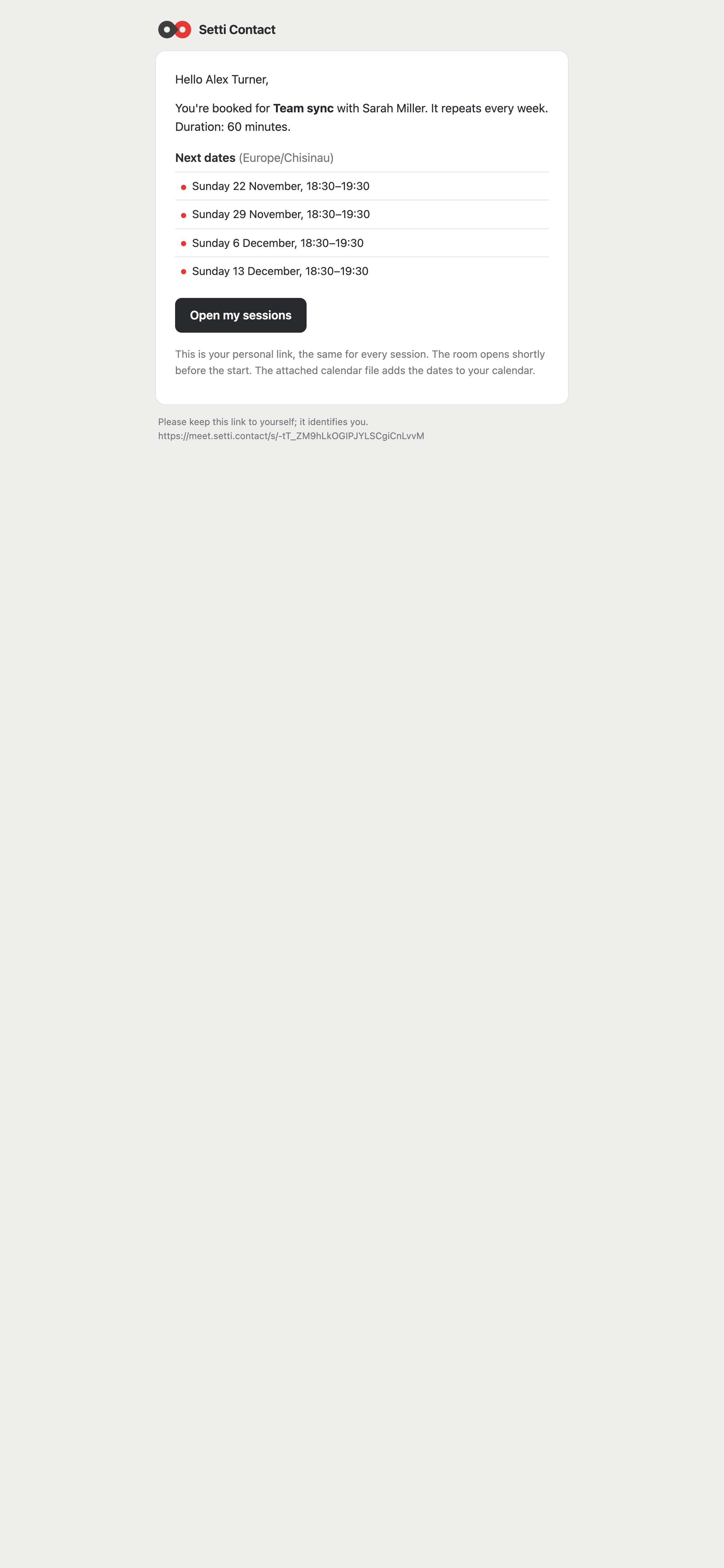
Keep the link to yourself: it identifies you.
3.2 Your sessions page
Opening the link shows when the next room opens, your upcoming dates, Add to calendar and an introduction of your host. If you keep the page open, it takes you into the room when it opens. If you are already in the call in another tab or on another device, this page doesn't join again and shows a Join from here button instead.
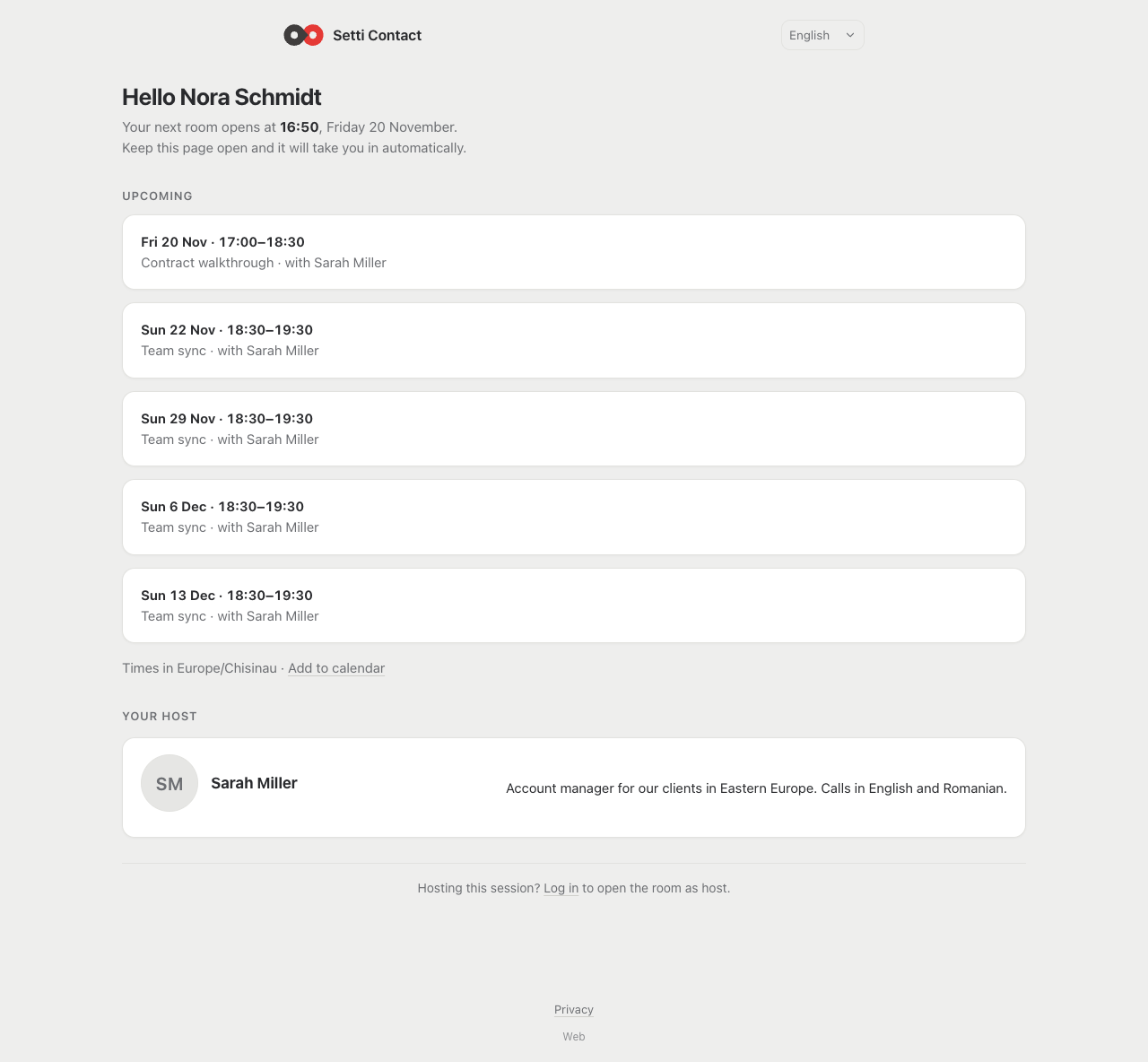
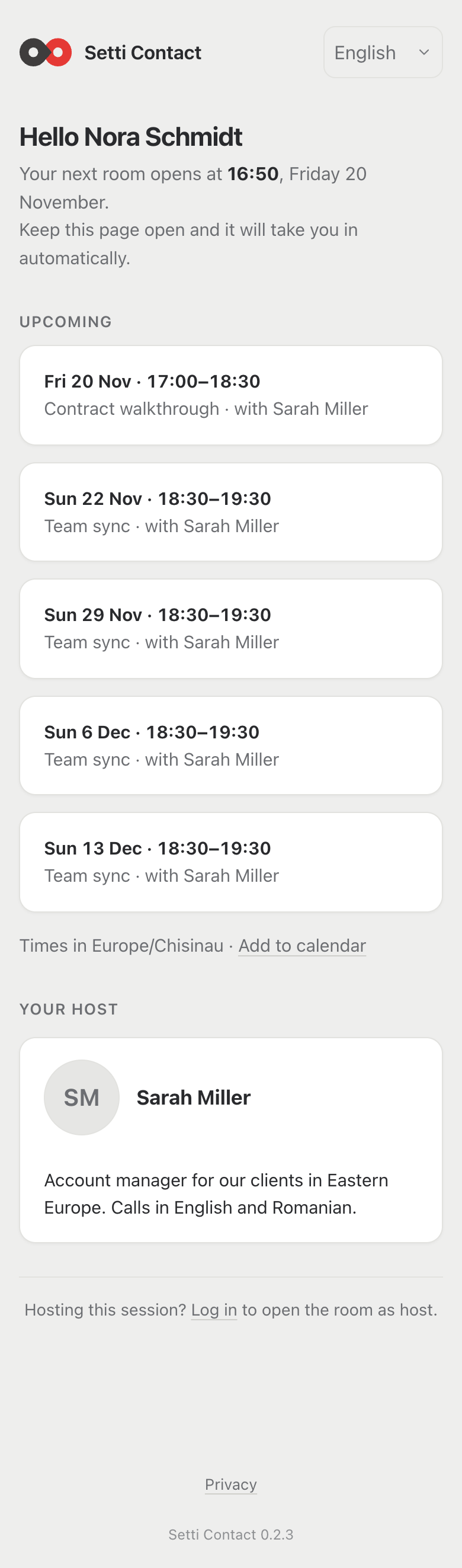
Language: choose it from the list at the top of the page; your choice is kept for your emails too.


3.3 Joining the call
Open your link a little before the start (or keep the page open). Setti Contact connects you in about a second. Then the page before the call shows your name, camera and microphone: press Join meeting. If the session has a waiting room, you wait there until the host lets you in.
In the call, the buttons at the bottom are the ones described in 2.2: microphone, camera, chat, raise hand and leave.
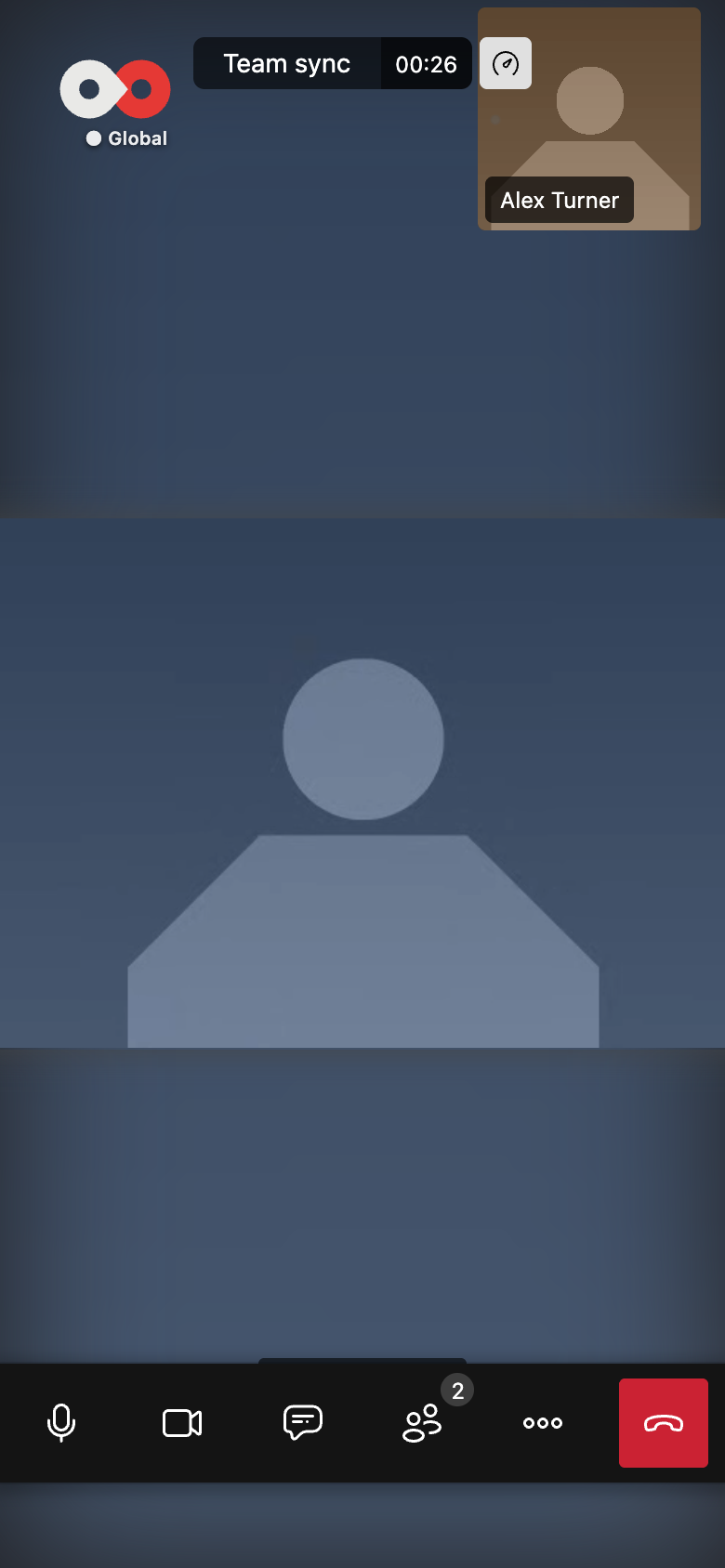
- In music lessons, always use headphones.
- If the connection drops, open your personal link again.
- Your personal link works on one device at a time: joining from a second device takes the place of the first, and the old page doesn't come back by itself.
3.4 The Android app and installing on your phone
- Android app: download it from setti.contact. Its pages are the ones above (the "app view" pictures); calls use the call screen built for phones and keep going when the screen is locked or you switch apps.
- iPhone and computers: open your link in the browser. In Safari on iPhone: Share → Add to Home Screen; in Chrome and Edge: the Install button the page offers.
3.5 After the session
After a class or a therapy session, you may get a "How was it?" email. A rating of 1 to 5 stars and a comment are optional and stay anonymous: the host doesn't see who rated or for which date.
What information is kept, and for how long: Privacy.